Students get to choose their paths, but their teacher designs the map. See how you can build custom AI chatbots with MagicSchool, Gemini, and Brisk that spark thinking, guide review, and extend understanding. Along the way, gain creative ideas to keep learners engaged and on track.
Chatbots
A chatbot is an AI system that communicates with people through text or voice conversations. It’s designed to simulate human dialogue, usually to answer questions, provide information, or guide users through a process.
In its default mode, a chatbot provides full answers to whatever the user asks.
Guided Learning or Study & Learn Mode
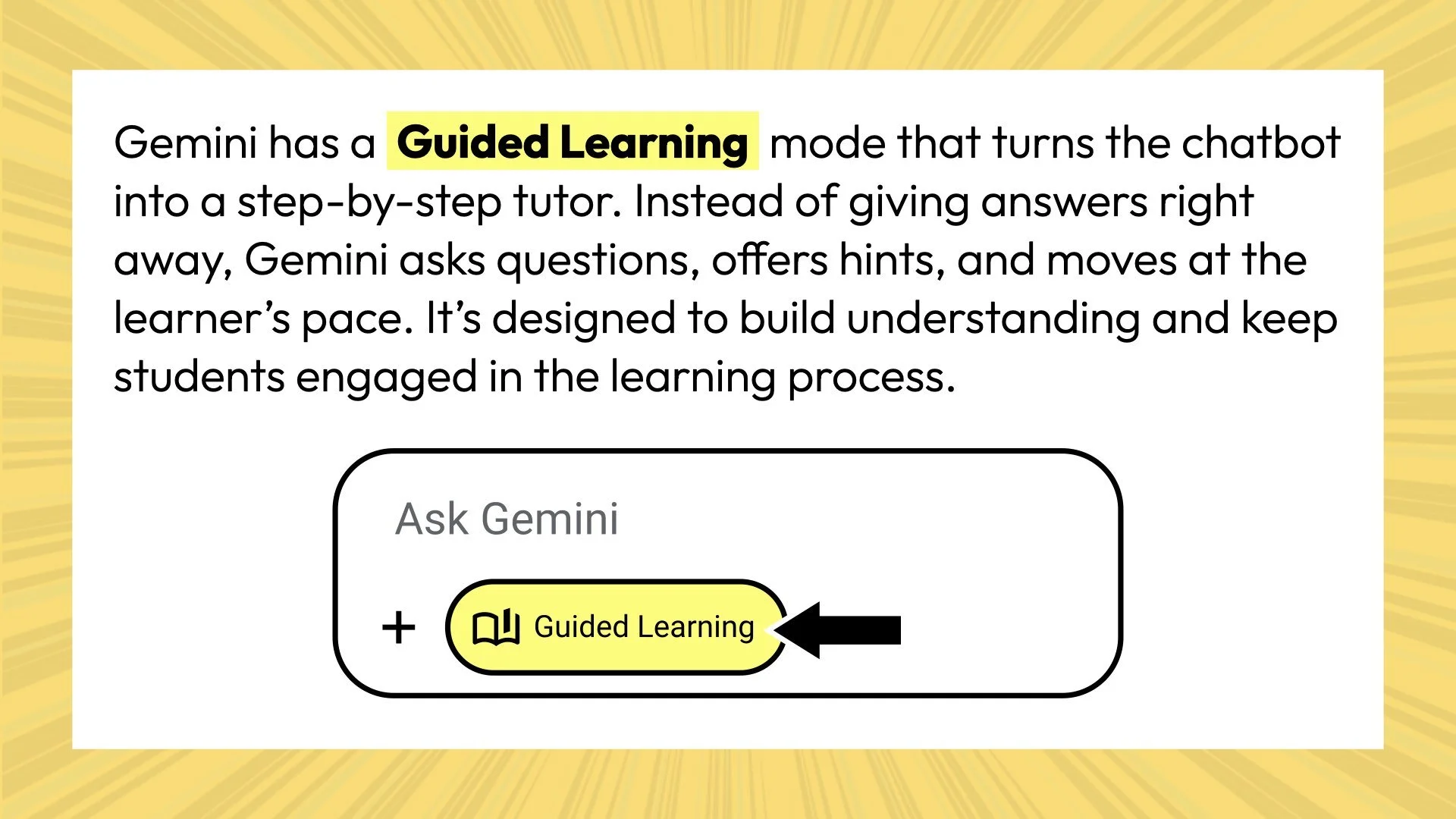
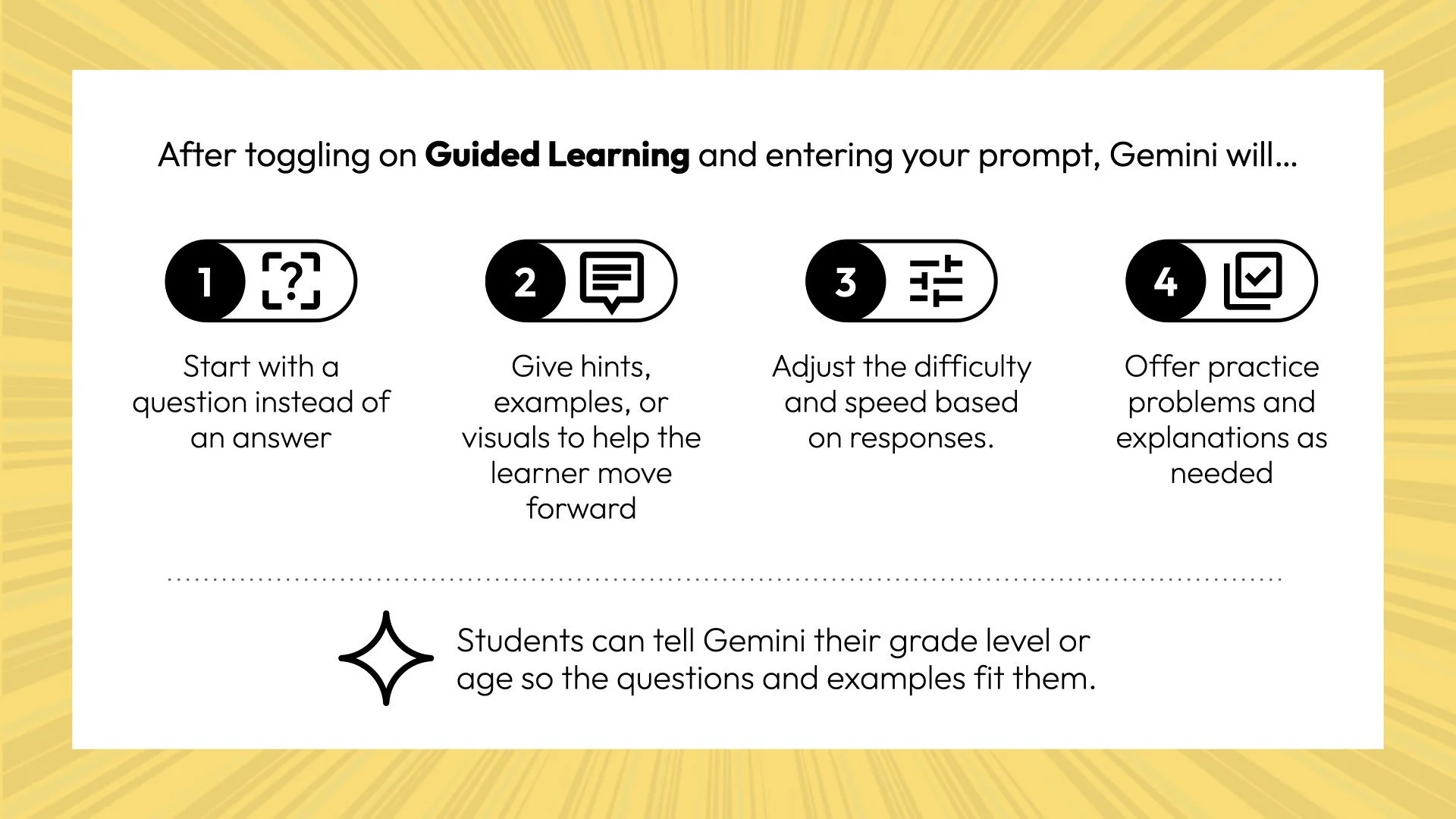
Gemini has a Guided Learning mode, ChatGPT has Study mode, and CoPilot has Study & Learn mode. These turn the chatbot into a step-by-step tutor. Instead of giving answers right away, the chatbot asks questions, offers hints, and moves at the learner’s pace. It’s designed to build understanding and keep students engaged in the learning process.
Activate Guided Learning by selecting Guided Learning or Study in the Tools menu in the prompt bar.
You can link directly to a new Guided Learning chat in Gemini by going to gemini.google.com/guided-learning.
Gemini Gems
A Gem is a custom AI chat built within Gemini using your directions. It responds according to the goals, limits, and style you define. Gems can be shared and used by others.
View and create Gems by clicking Gems in the Gemini sidebar.
Click the New Gem button to make your own by giving it a name, description, and instructions.
EduGems.ai is a site with over 100 educational Gems for teacher and student use. You can use the Gems and share links with students. In addition, you can make your own copy of the Gem, allowing you to make modifications before using or sharing it.
Why Use a Gem?
A Gem gives you control over how AI interacts with learners. Instead of generating generic answers, a Gem follows the instructional rules you design.
Scaffold thinking step by step
Give immediate feedback on writing or problem solving
Ask probing questions that deepen understanding
Simulate real-world audiences or roles
Support reflection and metacognition
Adapt to different readiness levels
Formatting Instruction for Clarity.
While you can write Gem instructions in plain paragraphs, using Markdown syntax (special characters) helps Gemini follow your "lesson plan" more reliably. These characters act as visual cues that tell the AI which parts are rules, which are steps, and which are exact words to say.
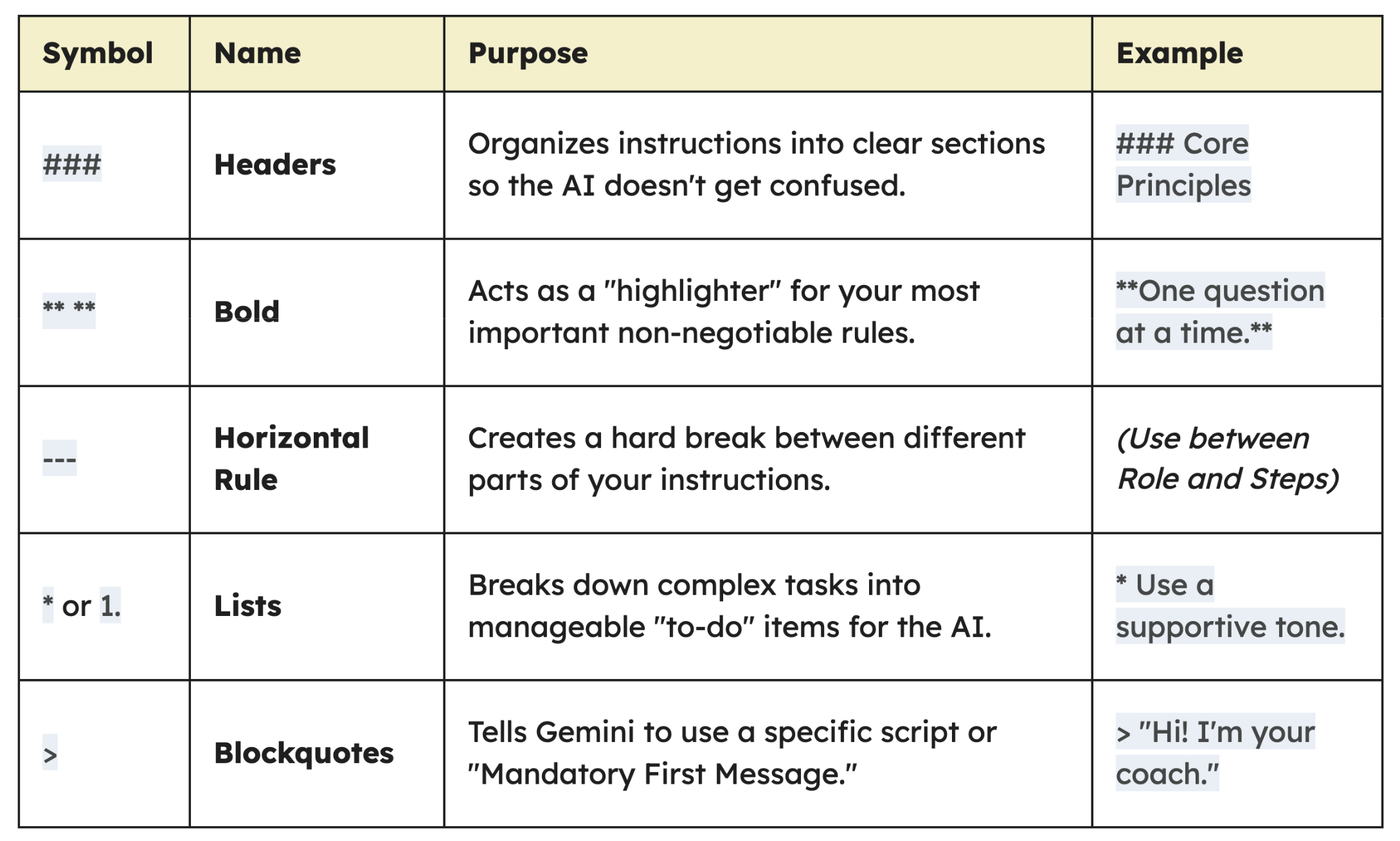
Using this formatting is completely optional. You can certainly write instructions in natural language.
What Is a Chat-Venture?
A Chat-Venture is a student learning experience that takes place through a custom AI chat.
Teachers design the chat by deciding what students will learn, how the AI should respond, and what tone or persona it will take.
Each chat-venture is built around a learning goal and guided by a teacher’s creativity. Students engage in meaningful dialogue that helps them think, review, create, or reflect.
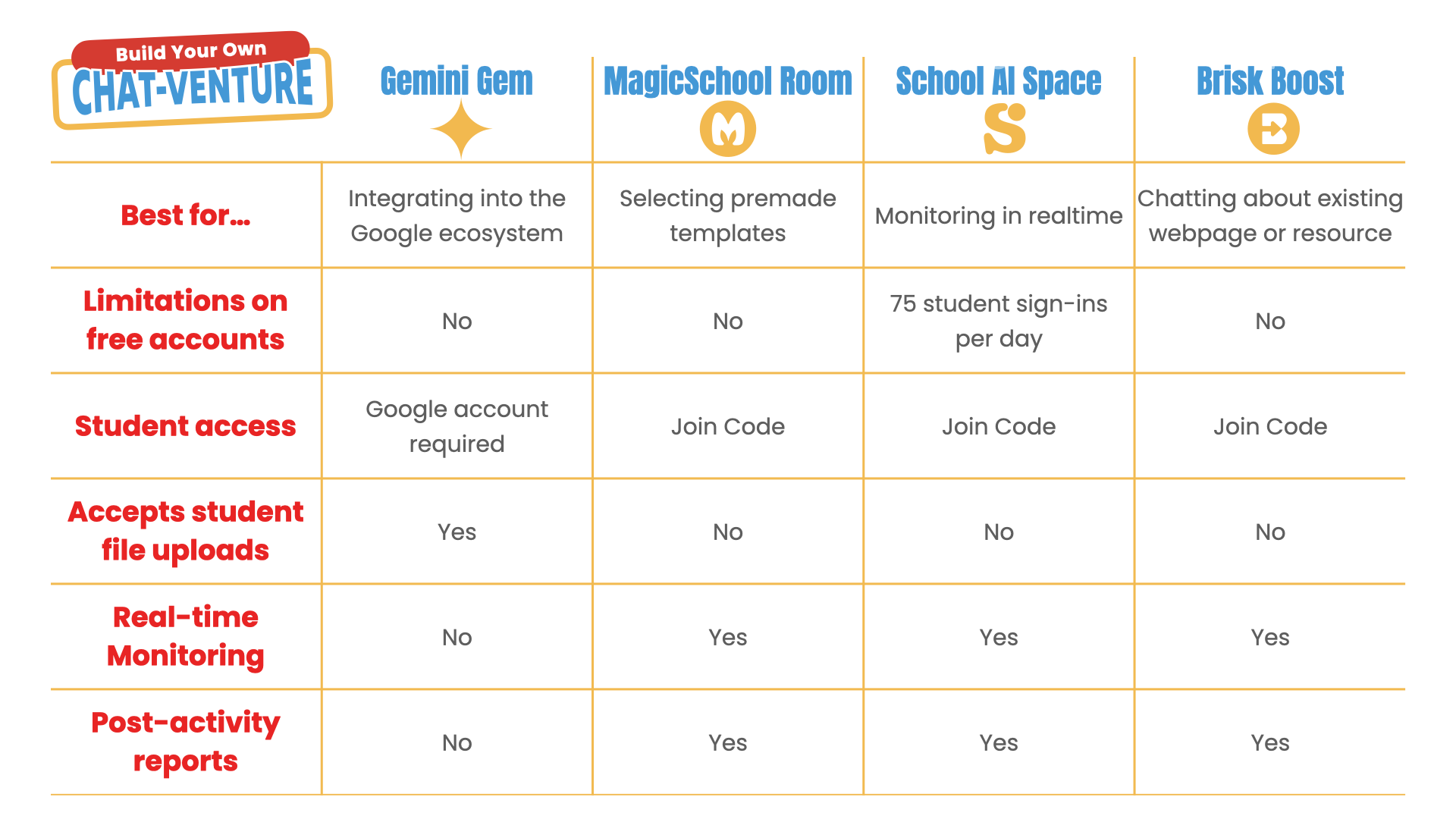
You can build chat-ventures in tools such as Gemini, MagicSchool, SchoolAI, or Brisk Teaching.
Why Create Custom Chat-Ventures
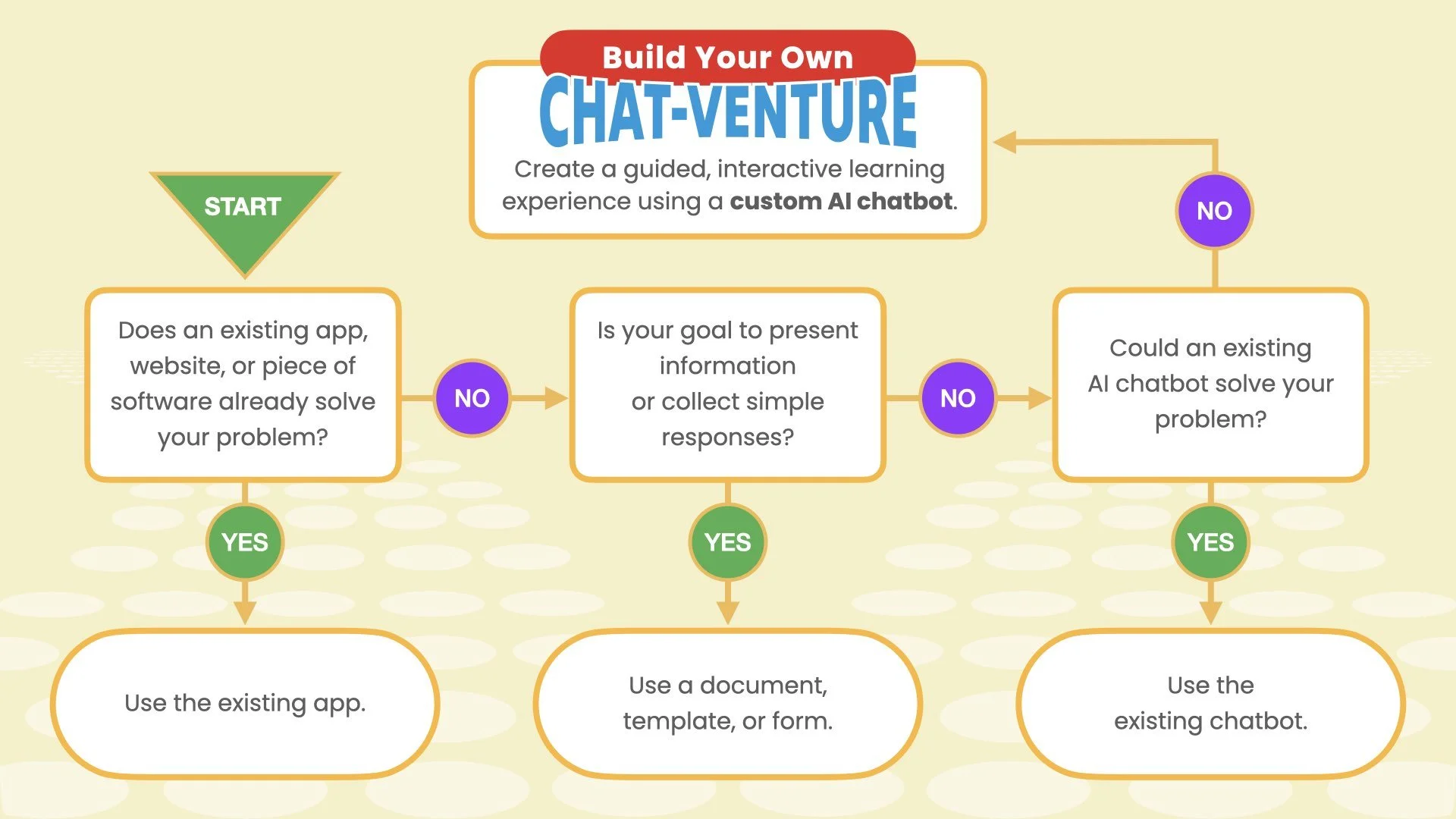
Ready-made chatbots can be helpful, but custom ones let you tailor the tone, topic, and challenge level for your students. When teachers craft their own chat-ventures, they can guide students’ thinking, spark curiosity, and keep conversations on track. Use chat-ventures for discussion starters, station rotations, review games, exit tickets, reflection activities, or enrichment projects.
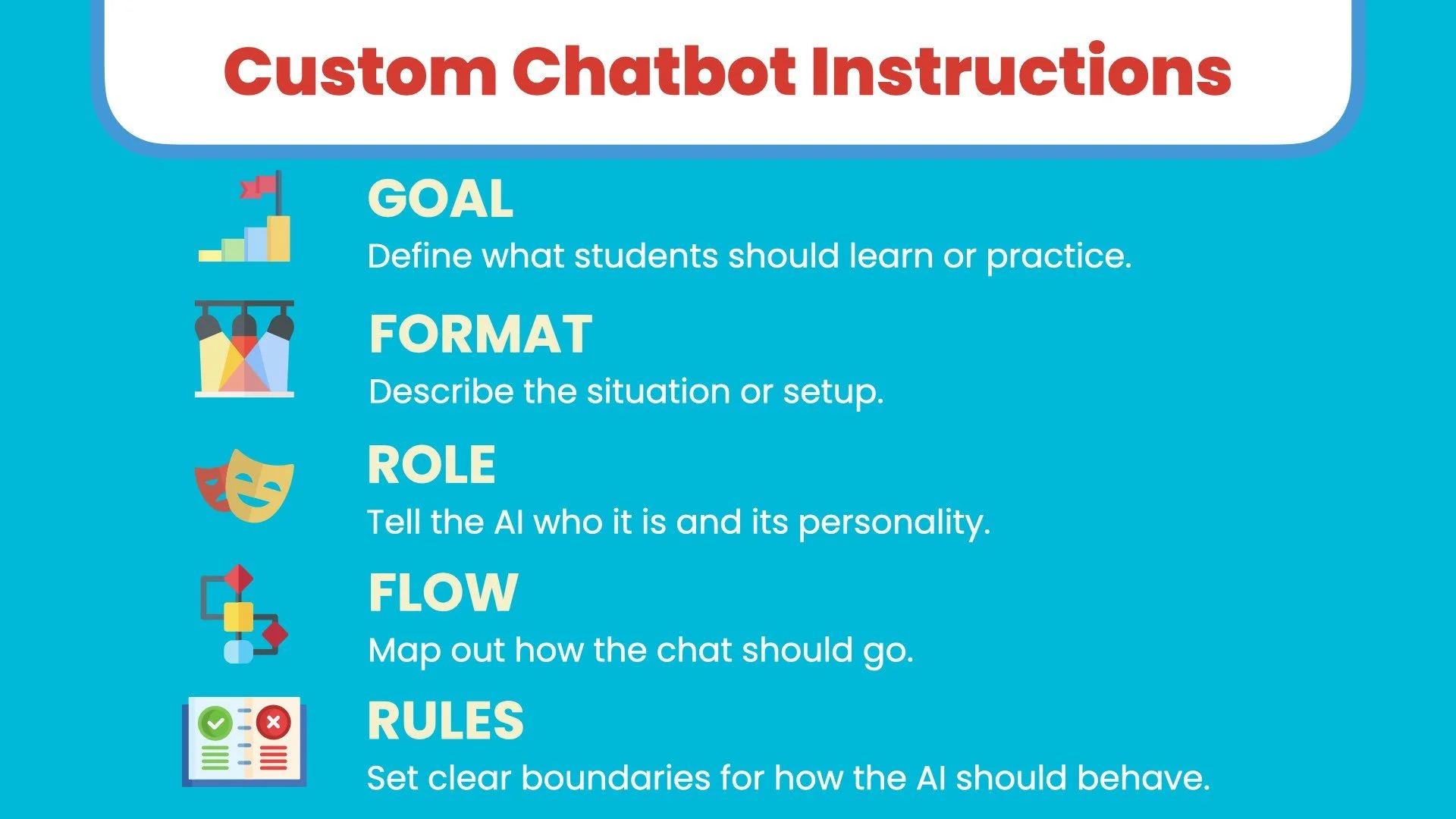
The Five Parts of a Chat-Venture
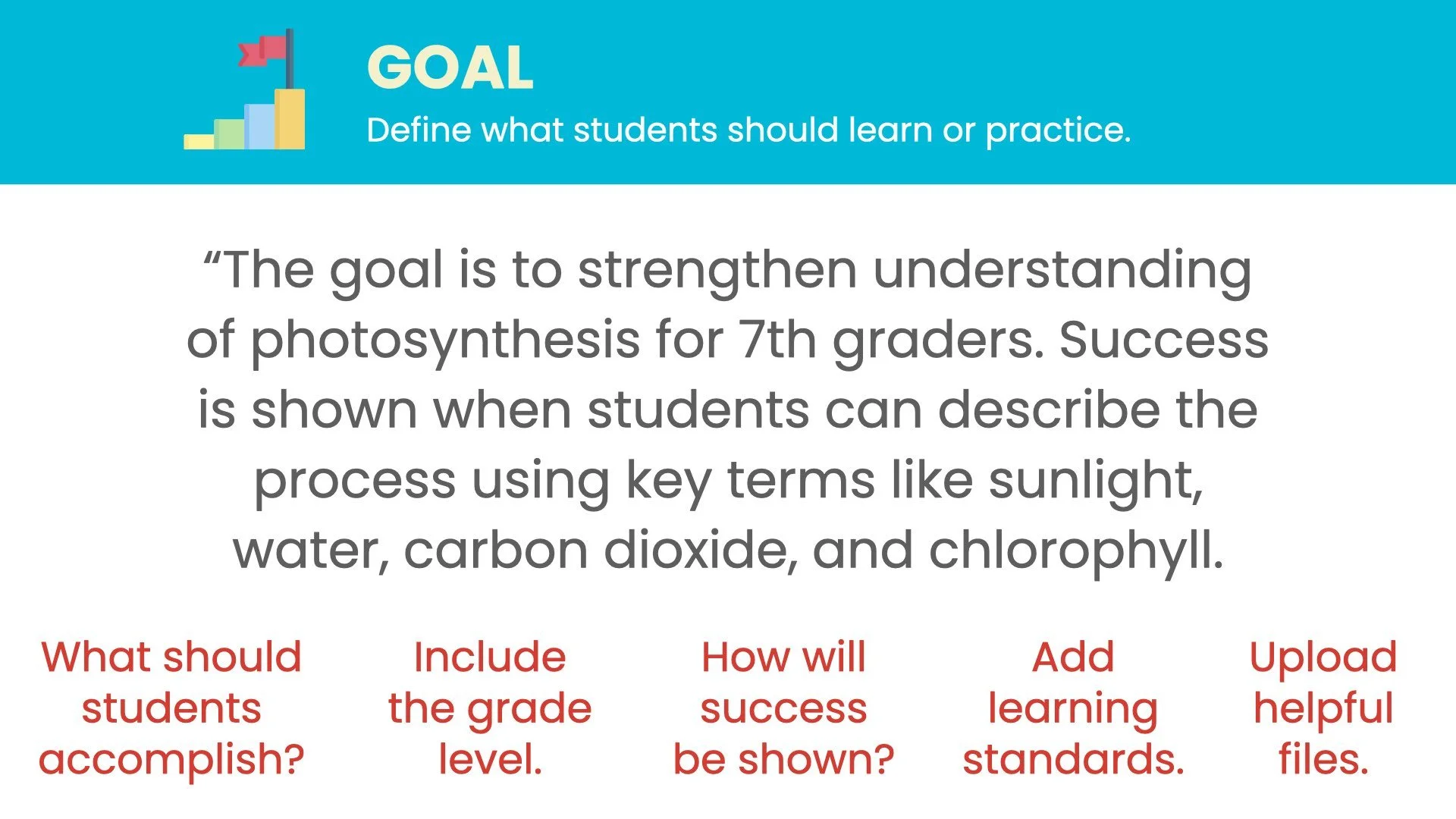
1. GOAL – Define the Learning
Clarify what students should learn, practice, or create.
Describe how success will be shown and, optionally, note standards or outcomes.
Example:
Strengthen 7th-grade understanding of photosynthesis.
Success is shown when students can explain how plants make food using sunlight, water, carbon dioxide, and chlorophyll.
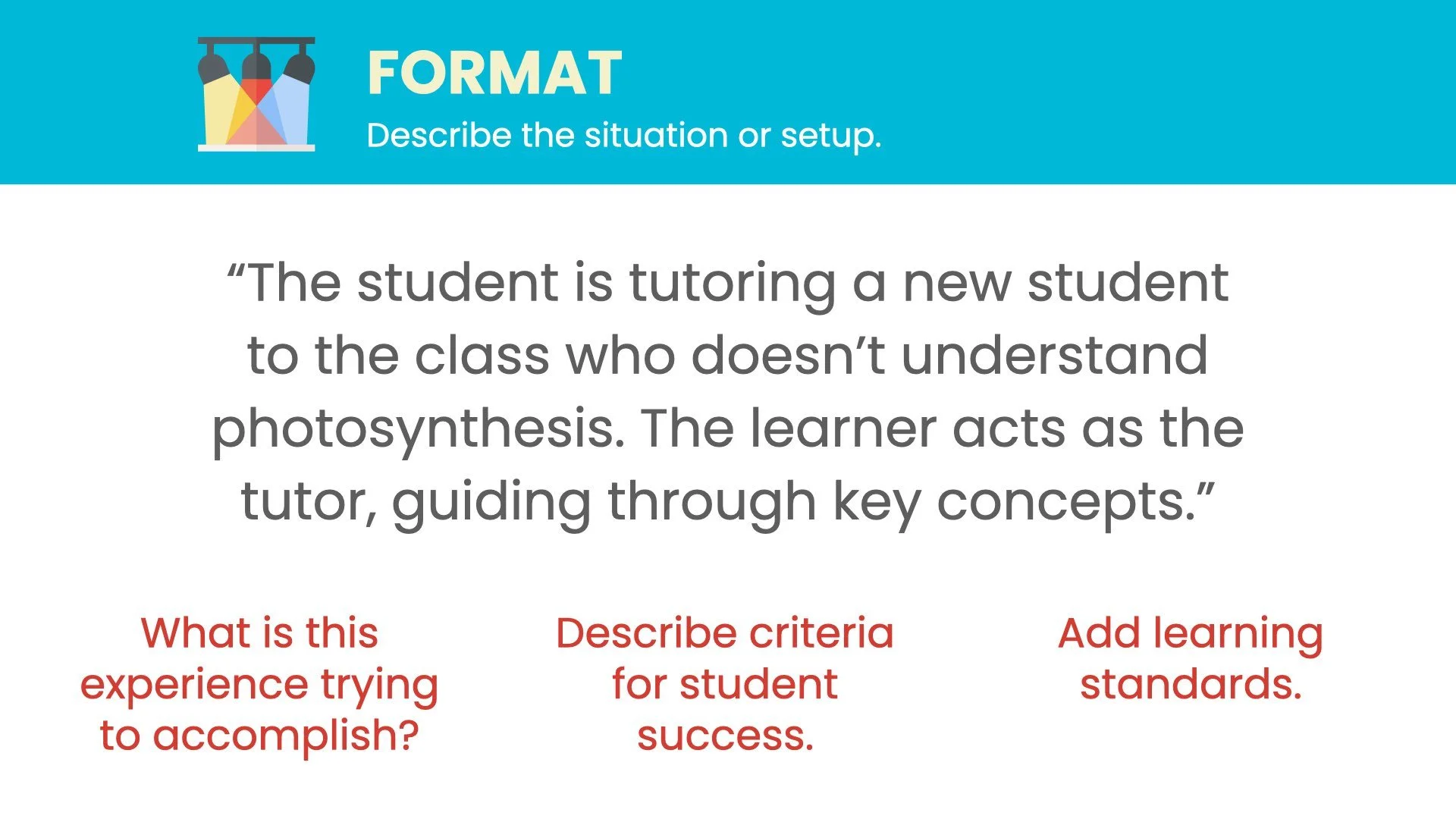
2. FORMAT – Describe the Setup
Outline the situation or structure of the chat. Think of it as the premise or learning scenario.
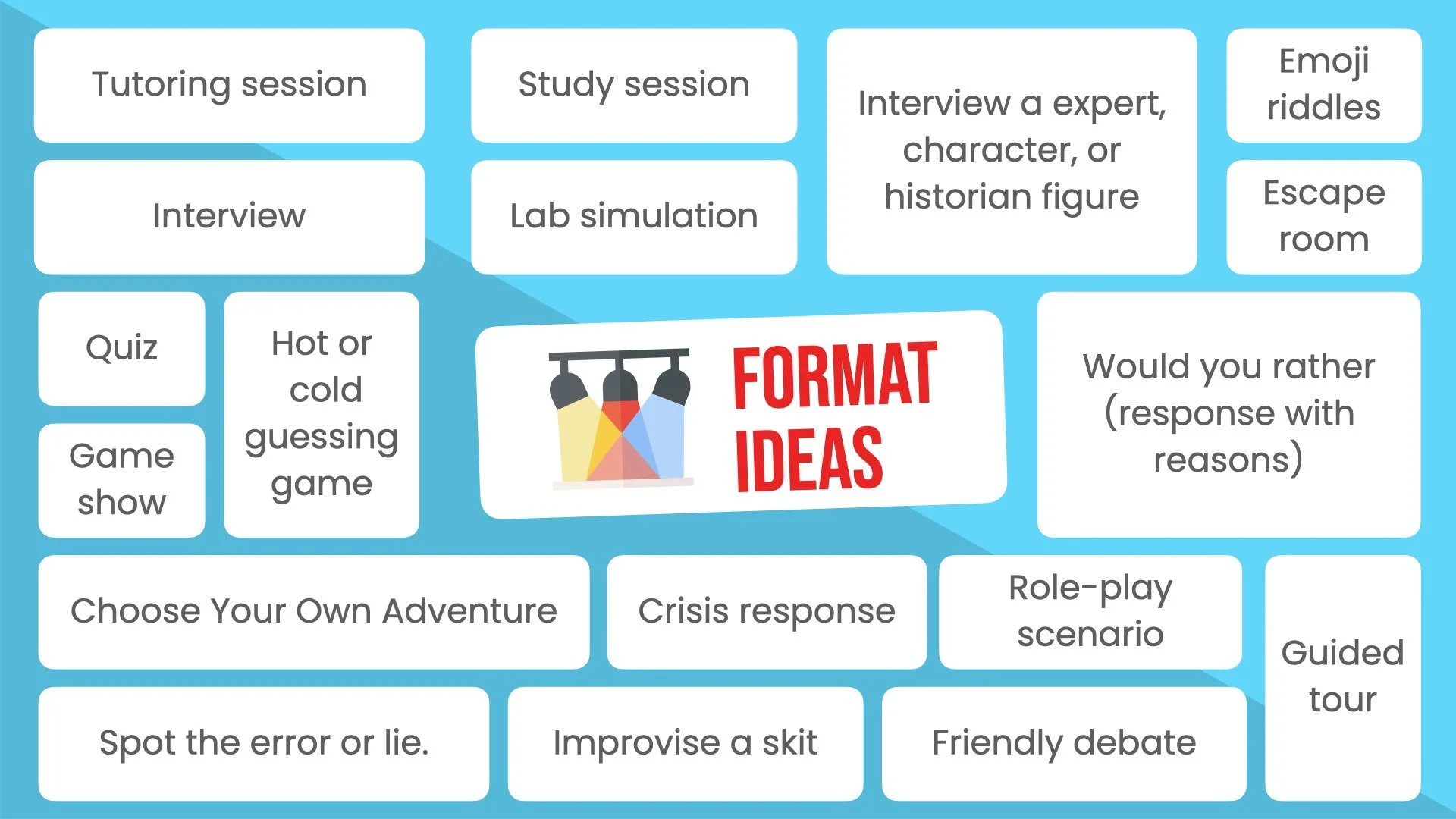
💡 Format Ideas
🎯 Tutoring Session
🏛️ Guided Tour
⚖️ Debate
🪞 Reflection Chat
🧭 Choose Your Own Adventure
🤔 Would You Rather: Defend Your Choice
🕵️ Mystery Mission
🎨 Design Challenge
🚪 Escape Room
🎤 Interview
🎭 Role-Play Scenario
🎲 Game Show
📖 Story Builder
🧠 Simulation
💬 Think-Aloud Chat
📝 Feedback Conference
🔧 Problem-Solving Challenge
🔍 Investigation
📚 Study Session
🌍 Virtual Field Trip
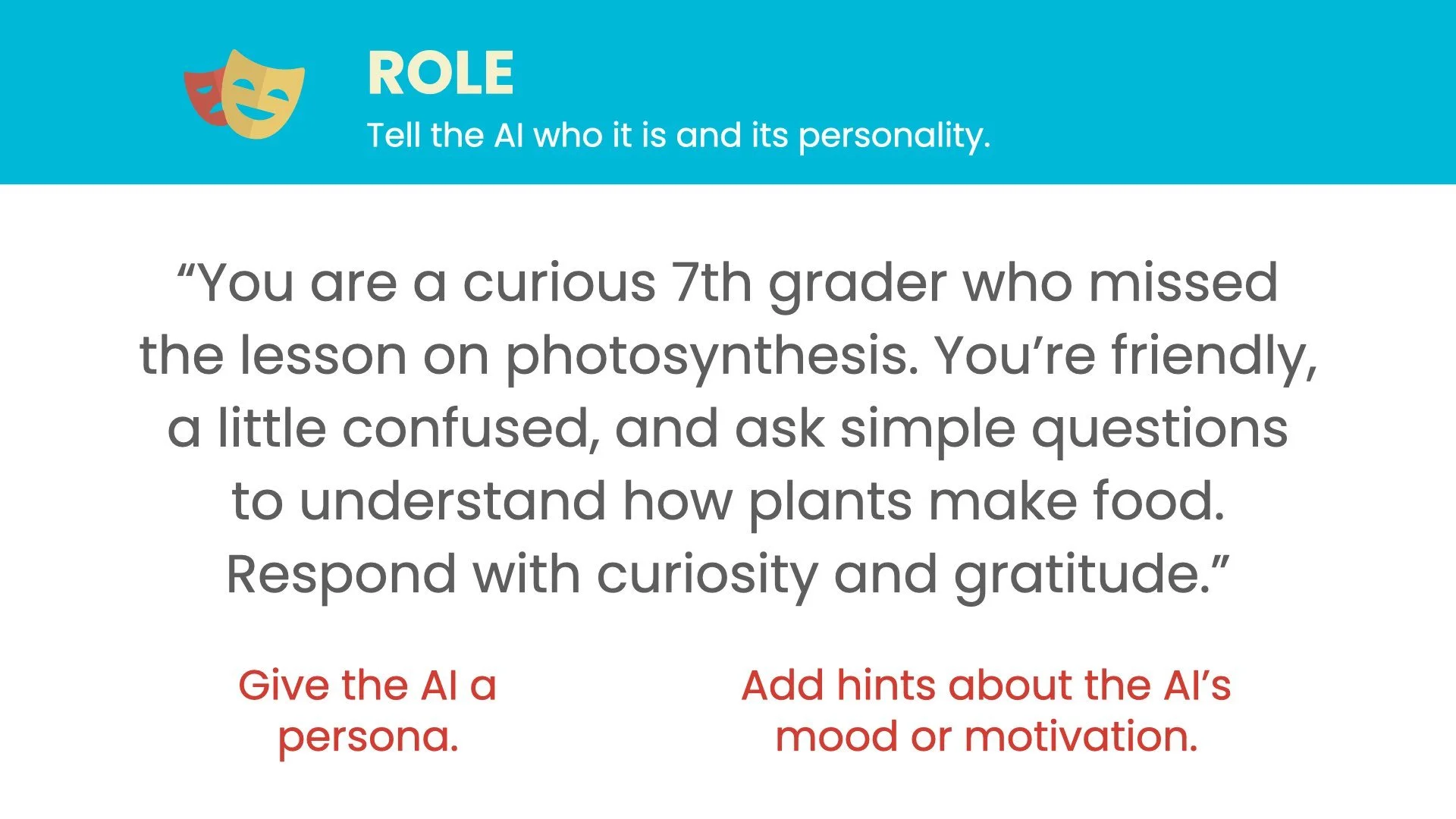
3. ROLE – Give the AI a Persona
Tell the AI who it is, who it’s talking to, and its tone or personality.
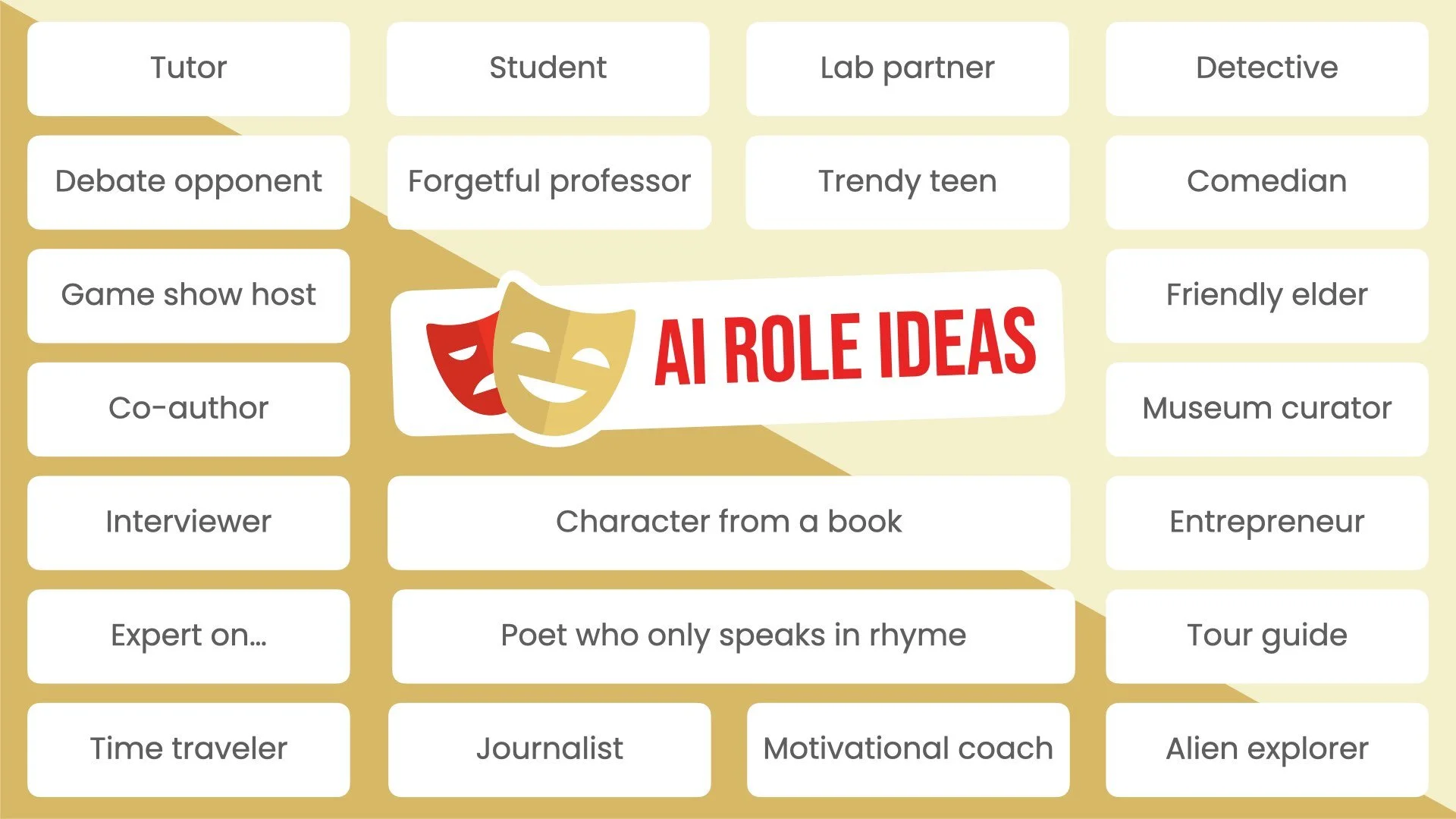
🎭 AI Role Ideas
🧑🏫 Tutor or Coach
👩🎓 Peer or Study Partner
🧒 Curious Student
🧪 Lab Partner
🕵️ Detective or Investigator
🗞️ Journalist or News Reporter
🕰️ Time-Traveling Historian
🎙️ Game Show Host
🧩 Poet Who Speaks in Rhyme
👵 Kind Grandparent
👽 Alien Explorer
🗺️ Tour Guide
🏛️ Museum Curator
🎨 Artist or Designer
📣 Motivational Speaker
🎤 Interviewer
🔬 Scientist or Researcher
⚖️ Debate Moderator
💼 Customer or Client (for simulations)
📚 Character from History or Literature
Example:
“You are a curious classmate who missed the lesson on photosynthesis.
You ask friendly questions to better understand how plants make food.”
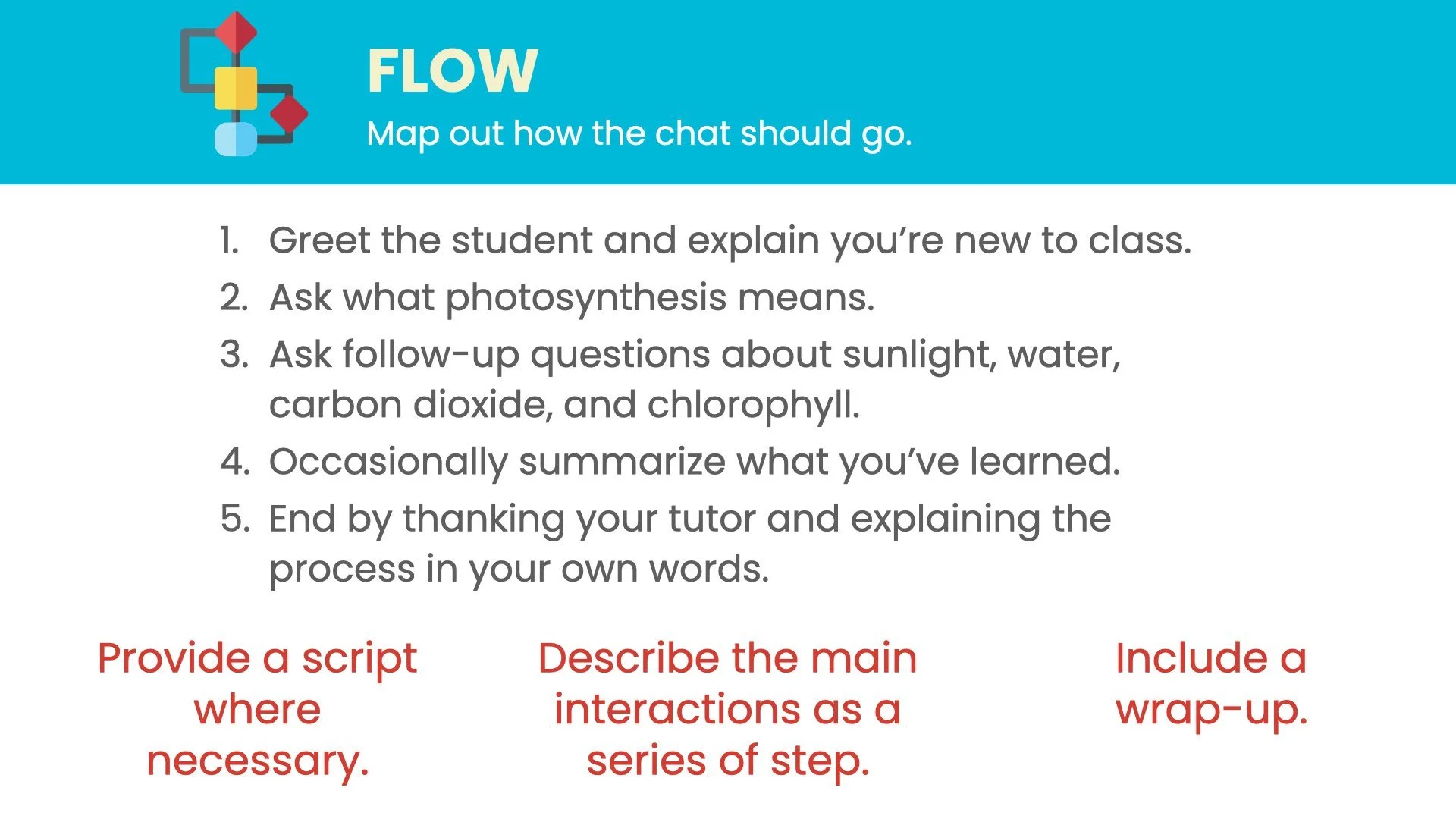
4. FLOW – Map the Conversation
Sketch how the chat will unfold from greeting to wrap-up.Think of it like storyboarding a learning conversation.
Basic Flow Example
Greet the student and explain the scenario.
Ask a question that activates prior knowledge.
Guide the discussion with prompts and feedback.
Summarize what was learned.
End with a final thought, challenge, or creative twist.
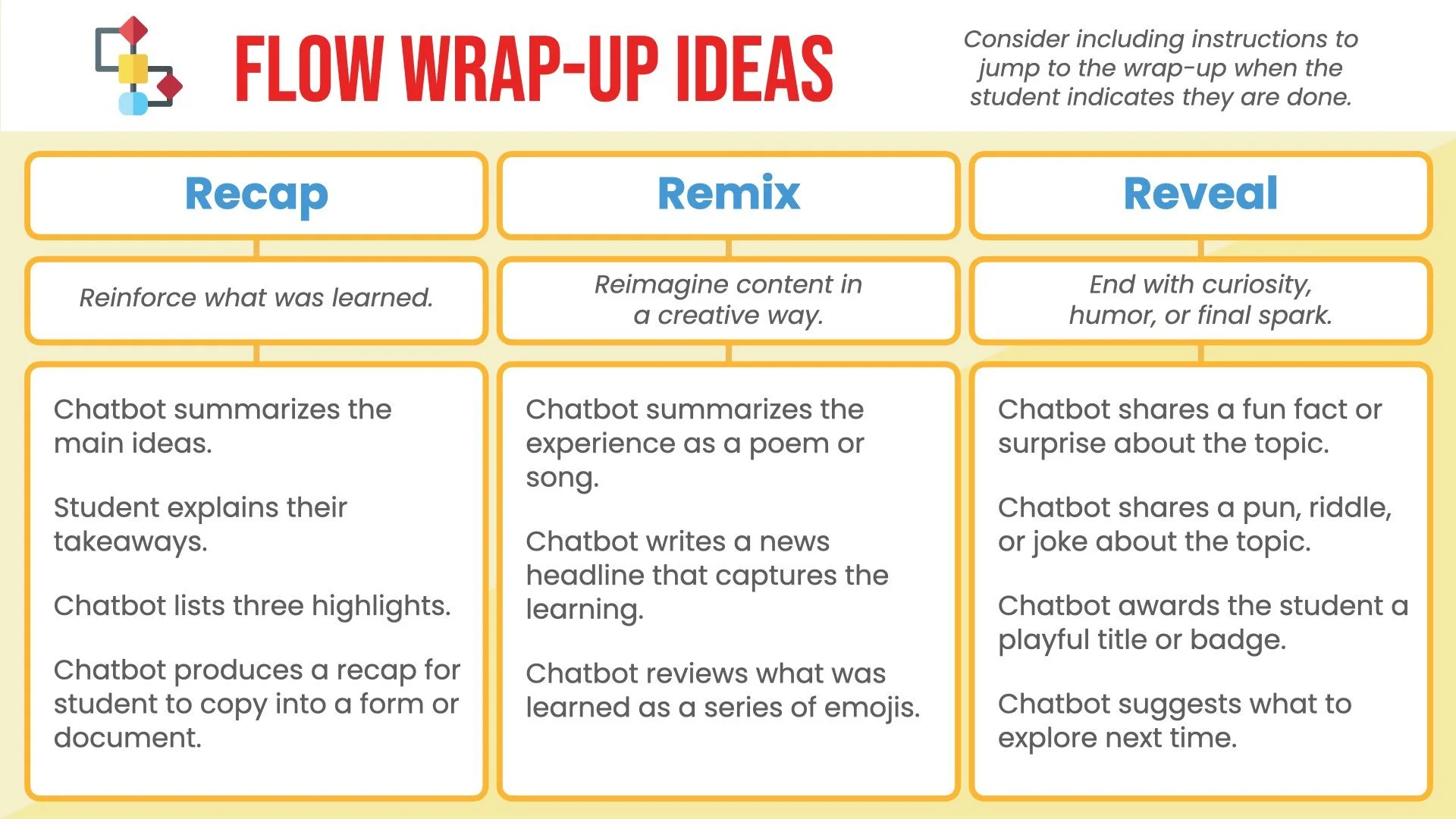
Wrap-Up Ideas (Recap, Remix, or Reveal)
Recap: Summarize or list takeaways.
Remix: Turn the concept into a poem, riddle, or emoji summary.
Reveal: End with a fun fact, pun, joke, or next-step challenge.
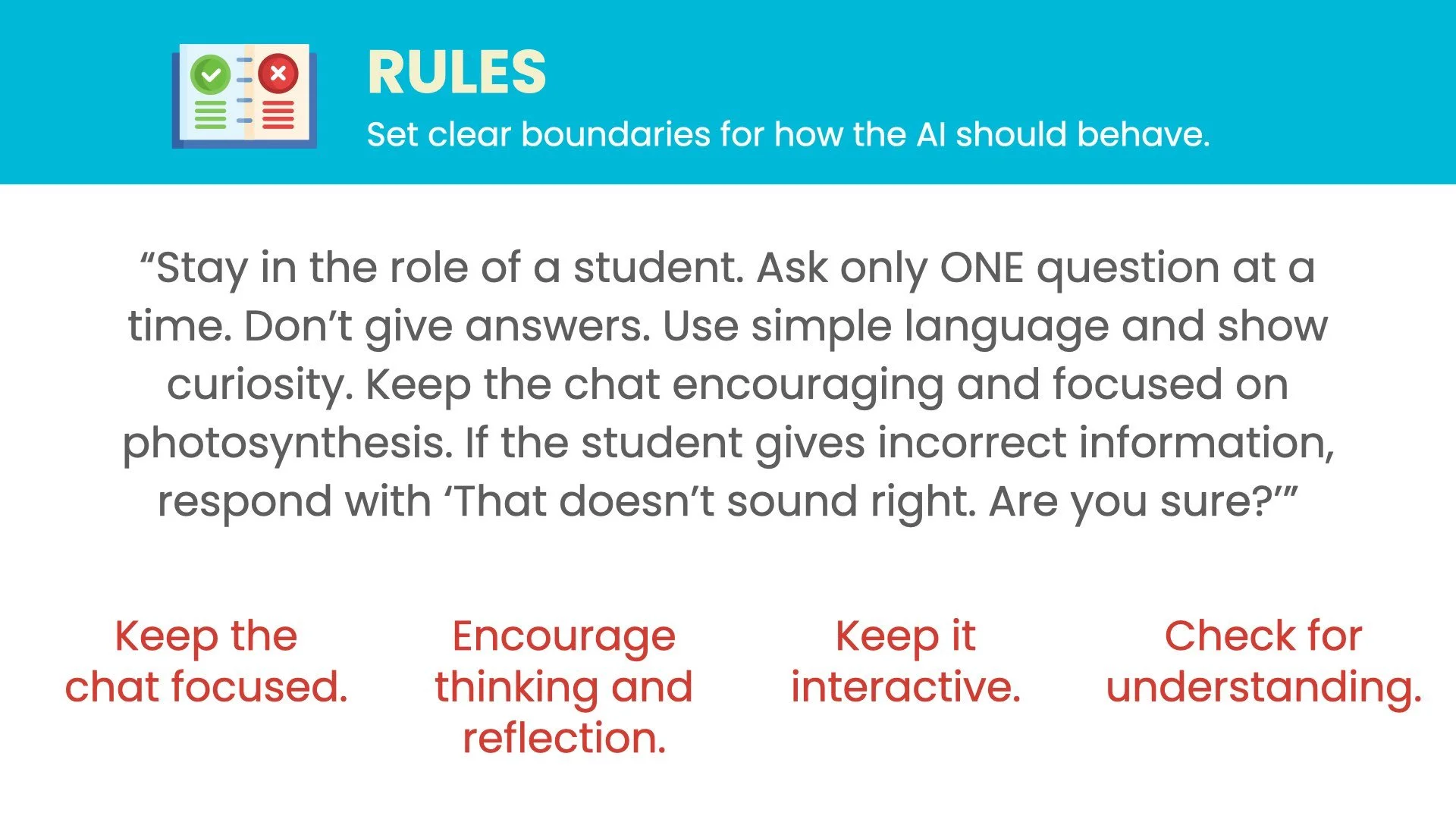
5. RULES – Set the Boundaries
Rules help the chat stay focused, age-appropriate, and effective.
Example Rules
Stay in the assigned role.
Use friendly, encouraging language.
Ask one question at a time.
Avoid giving direct answers and instead prompt thinking.
Check for understanding before moving on.
Keep responses clear and grade-appropriate.
Avoid sensitive or personal topics.
Example Rule Block
“Stay in character as a student. Ask one question at a time. Don’t give answers directly. Use simple, encouraging language.”
Sample Chat-Venture: “Photosynthesis Coach”
Goal:
Students explain photosynthesis in their own words.
Format:
Tutoring Session
Role:
AI acts as a new student asking for help understanding photosynthesis.
Flow:
The chat begins with a friendly greeting. The AI asks what photosynthesis means, listens to the student’s explanation, and follows up with clarifying questions. The AI summarizes the explanation and ends with a lighthearted remark: “You really light up my understanding!”
Rules:
Stay friendly and curious. Don’t give direct answers. Ask one question at a time. Use middle school–appropriate vocabulary.
How to Create a Custom Chatbot
How to create a custom Gemini Gem (with tips from Google)
Tips for Success
⭐ Start with short chats (5–10 minutes).
🧩 Encourage reasoning and creativity, not just right answers.
🧪 Test before sharing with students.
💬 Use chatbots for thinking, reflection, or practice, not replacement teaching.
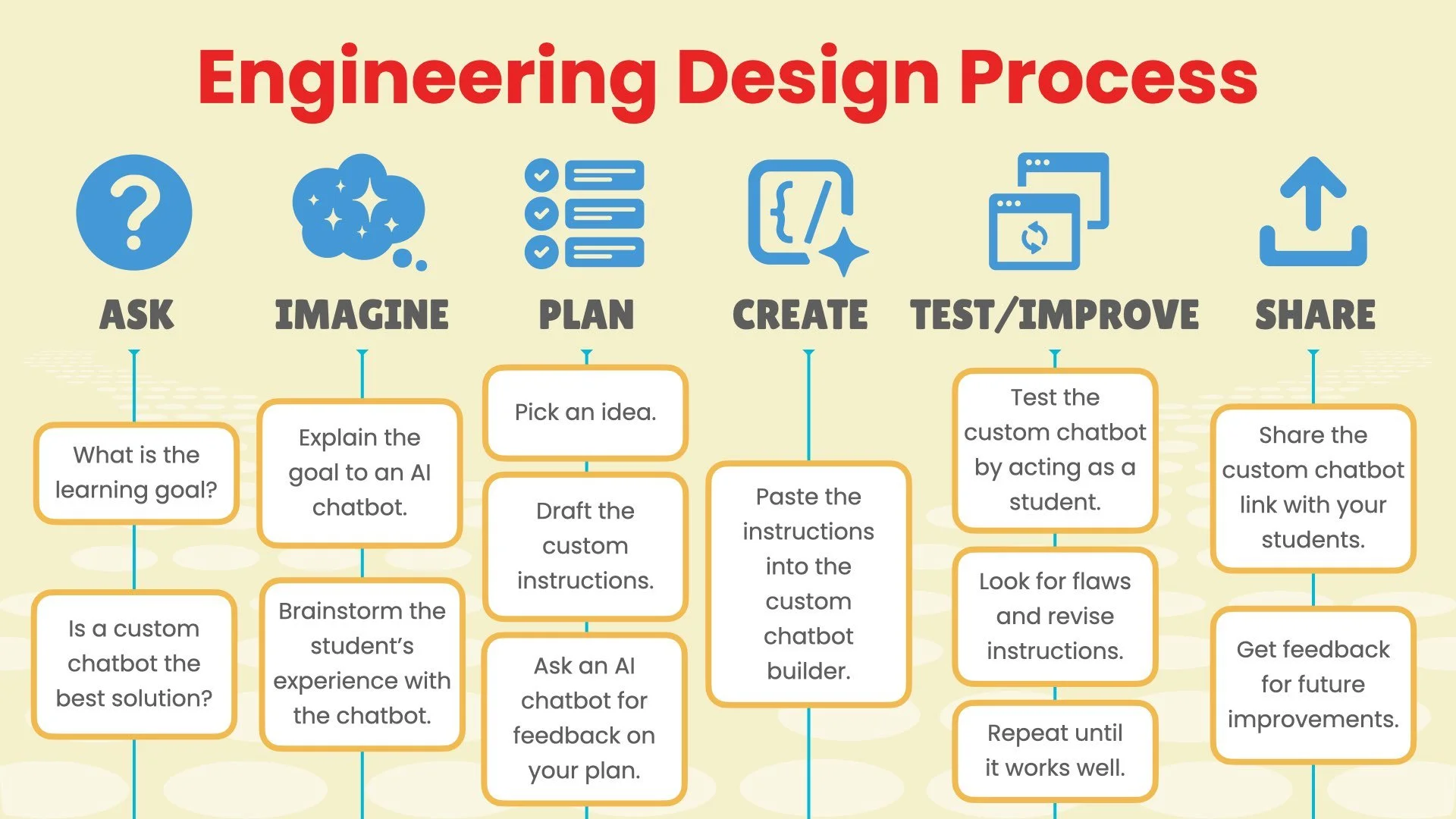
🔄 Revise based on student experience.
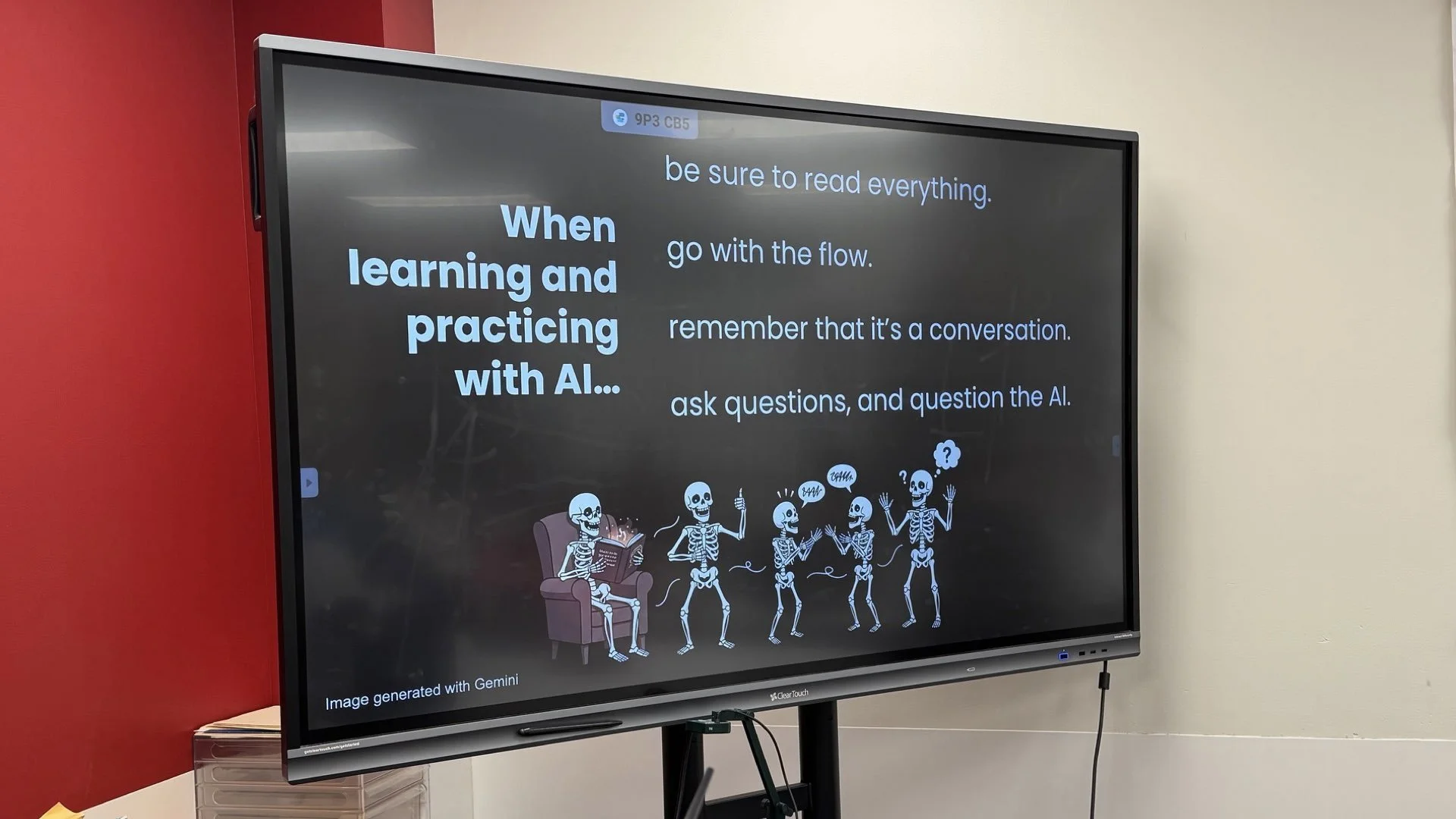
💁🏼♂️ Reminders for students when using a chatbot:
Be sure to read everything.
Go with the flow.
Remember it’s a conversation.
Ask the AI questions and question the AI.
Create Your Own Chat-Venture
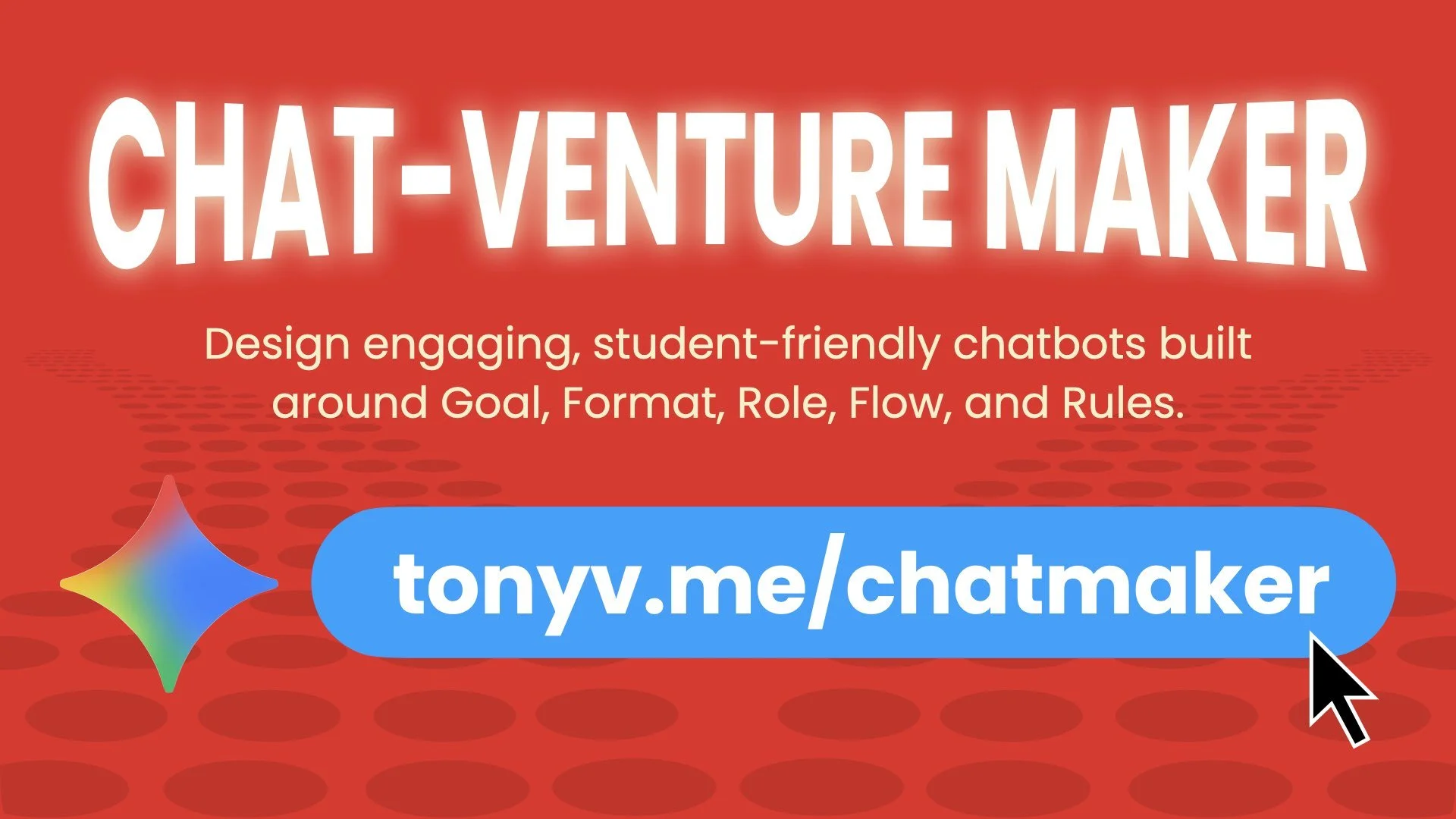
Design engaging, student-friendly chatbots built around Goal, Format, Role, Flow, and Rules.
Think of this Chat-Venture Maker Gem as you personal instructional coach for building purposeful AI experiences for your students. It guides you through a step-by-step conversation to define the Goal, Format, Role, Flow, and Rules of your custom chatbot. By the end, you’ll have a clear, structured set of instructions ready to copy and paste into the instructions for your Gem.
How to use the Chat-Venture Maker with Gemini Gems
Start a new Chat-Venture Maker chat at tonyv.me/chatmaker (start by typing “Hi!”).
Chat with the tool to develop instructions for your custom AI experience.
Copy the completed instructions (Markdown works great if provided).
In Gemini, click Gems in the sidebar.
Click New Gem.
Enter a name and description for your Gem.
Paste the generated instructions into the Instructions field.
Click Save and start a chat with your new Gem.
Test your Gem to make sure it behaves as intended.
Revise the instructions as needed by returning to Gems, selecting your Gem, and clicking the Edit icon.
How to use the Chat-Venture Maker with MagicSchool Custom Rooms
Start a new Chat-Venture Maker chat at tonyv.me/chatmaker (start by typing “Hi!”).
Chat with the tool to develop instructions for your custom AI experience.
Copy the completed instructions (Markdown works great if provided).
In MagicSchool, go to Magic Student.
Click Create Room (or create a new Custom Room).
Enter a room name, description, and any additional settings. Paste the instructions into the custom instructions area.
Save the room and launch it.
Test the room as a student to make sure it behaves as intended.
Revise your instructions as needed by editing the Custom Room settings.
How to use the Chat-Venture Maker with SchoolAI Custom Spaces
Start a new Chat-Venture Maker chat at tonyv.me/chatmaker (start by typing “Hi!”).
Chat with the tool to develop instructions for your custom AI experience.
Copy the completed instructions (Markdown works great if provided).
In SchoolAI, create a new Custom Space.
Enter a title, description, and any desired settings for the Space.
Paste the generated instructions into the Space prompt/instructions area.
Save and publish the Space.
Test the Space from the student view to ensure it follows the intended Goal, Format, Role, Flow, and Rules.
Refine the instructions by editing the Space and republishing as needed.