Presented July 2026
Have you ever wished for a digital game, timer, review activity, brain break, or classroom tool that didn’t quite exist? Now you can create your own. Using Canva AI, you’ll learn how to describe what you want in plain language and have AI generate the code behind it.
No programming experience is required. You’ll discover how to prompt AI effectively, test and refine what it creates, and turn your ideas into useful classroom tools. Whether you’re looking for a quick review game, a custom classroom routine, or something entirely new, you’ll leave with the skills and confidence to bring your ideas to life.



Teachers often have creative ideas for digital tools and activities but lack the time or coding skills to make them. That’s where vibe coding comes in.
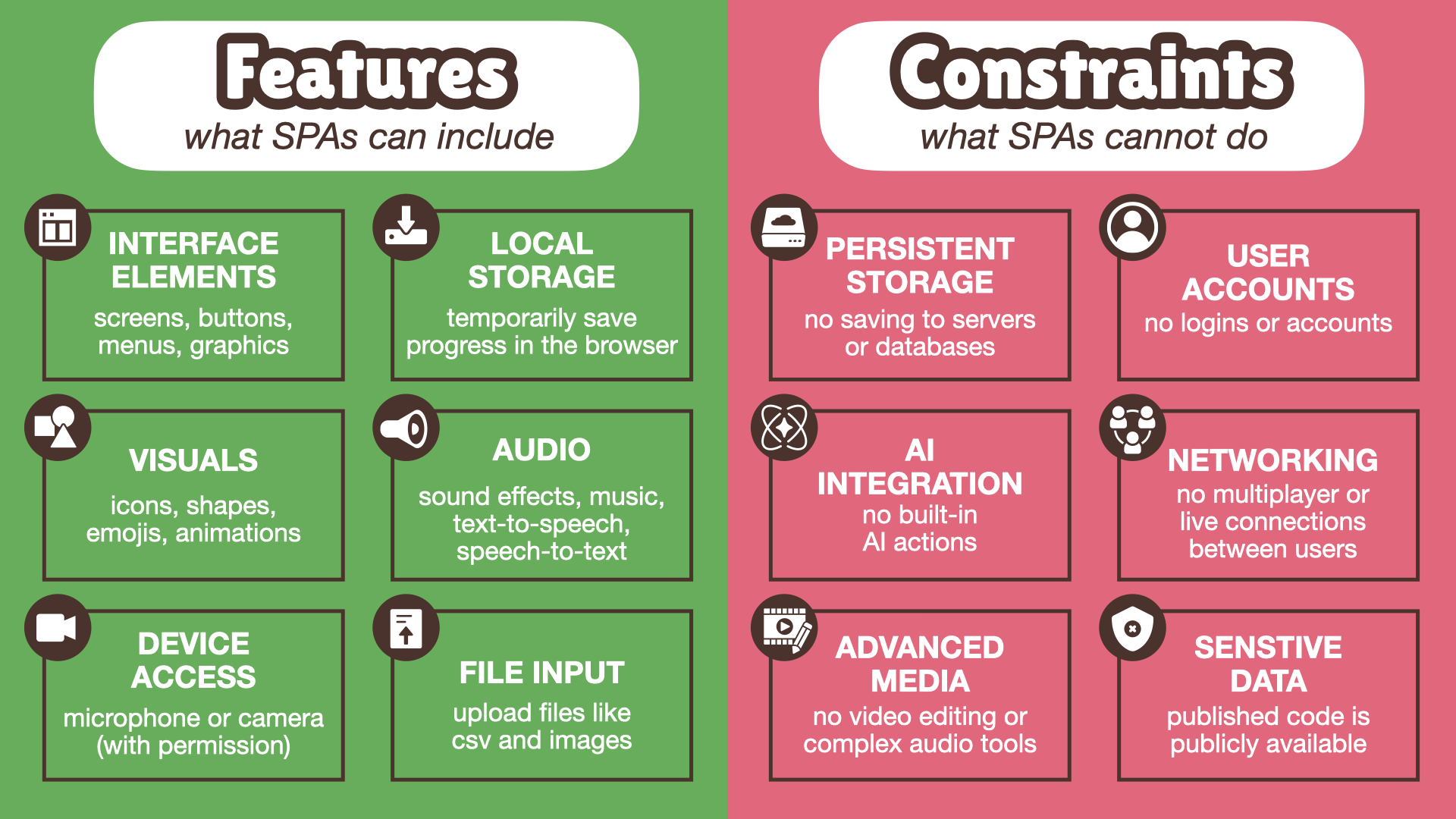
Vibe coding means using an AI chatbot to build an app by describing what you want in plain language. You explain your idea, share the look and feel you imagine, and the AI writes the code for you. It is a creative and approachable way to turn ideas into interactive, classroom-ready tools.
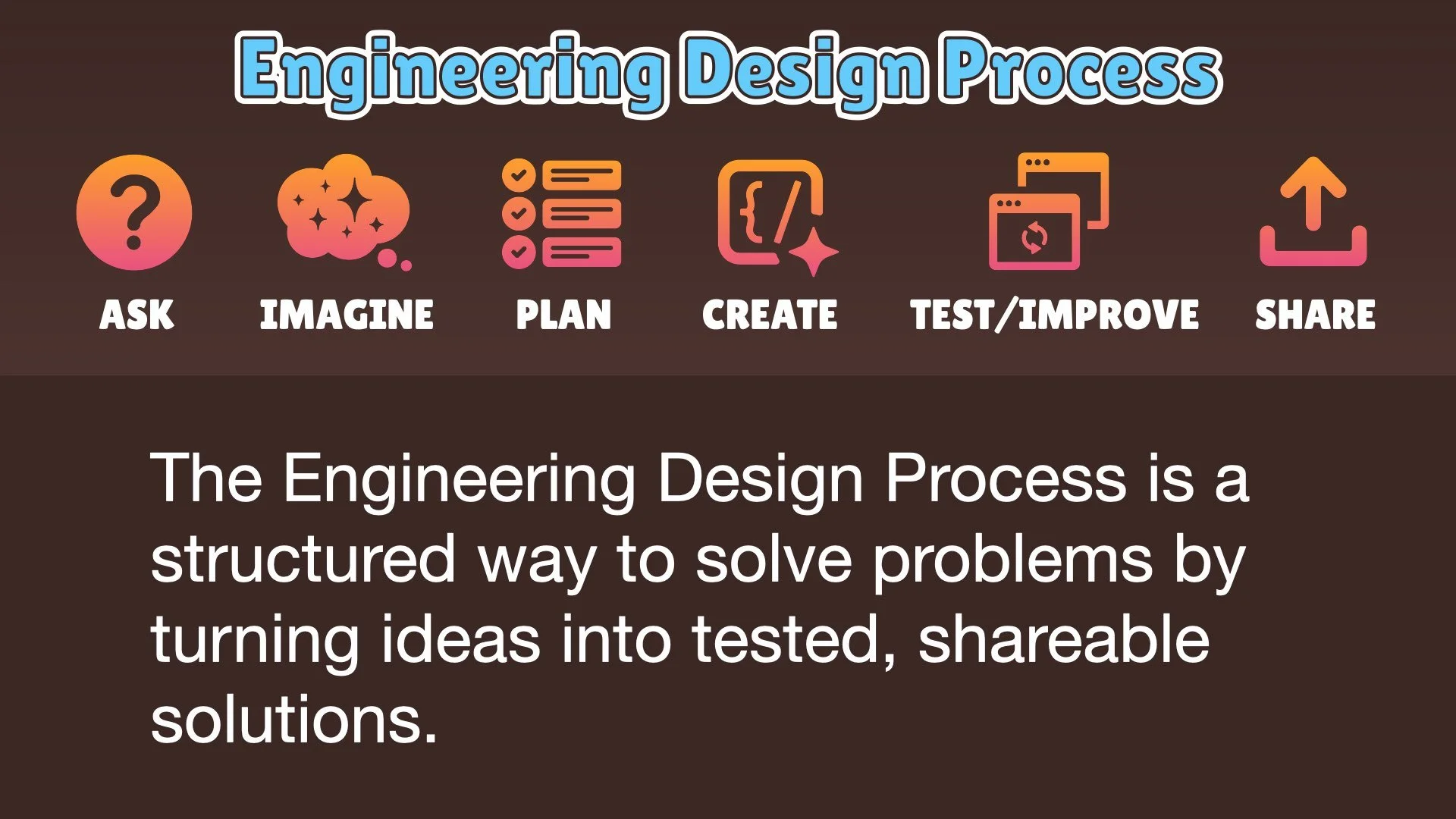
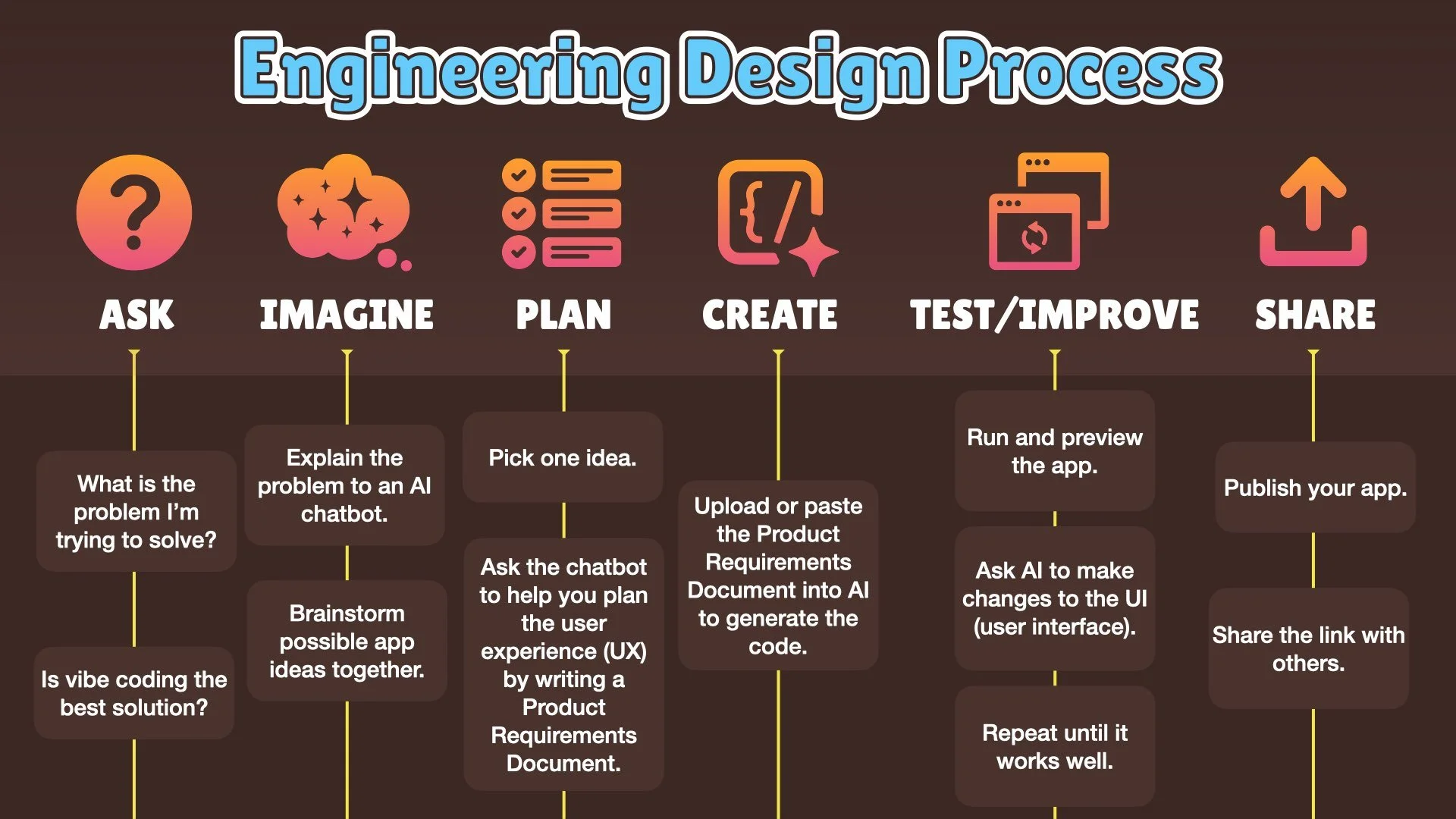
Vibe coding combines the imagination of a teacher with the problem-solving power of artificial intelligence. It also connects closely with the Engineering Design Process, encouraging teachers to ask questions, imagine possibilities, plan solutions, create, test, and share.
About Vibe Coding
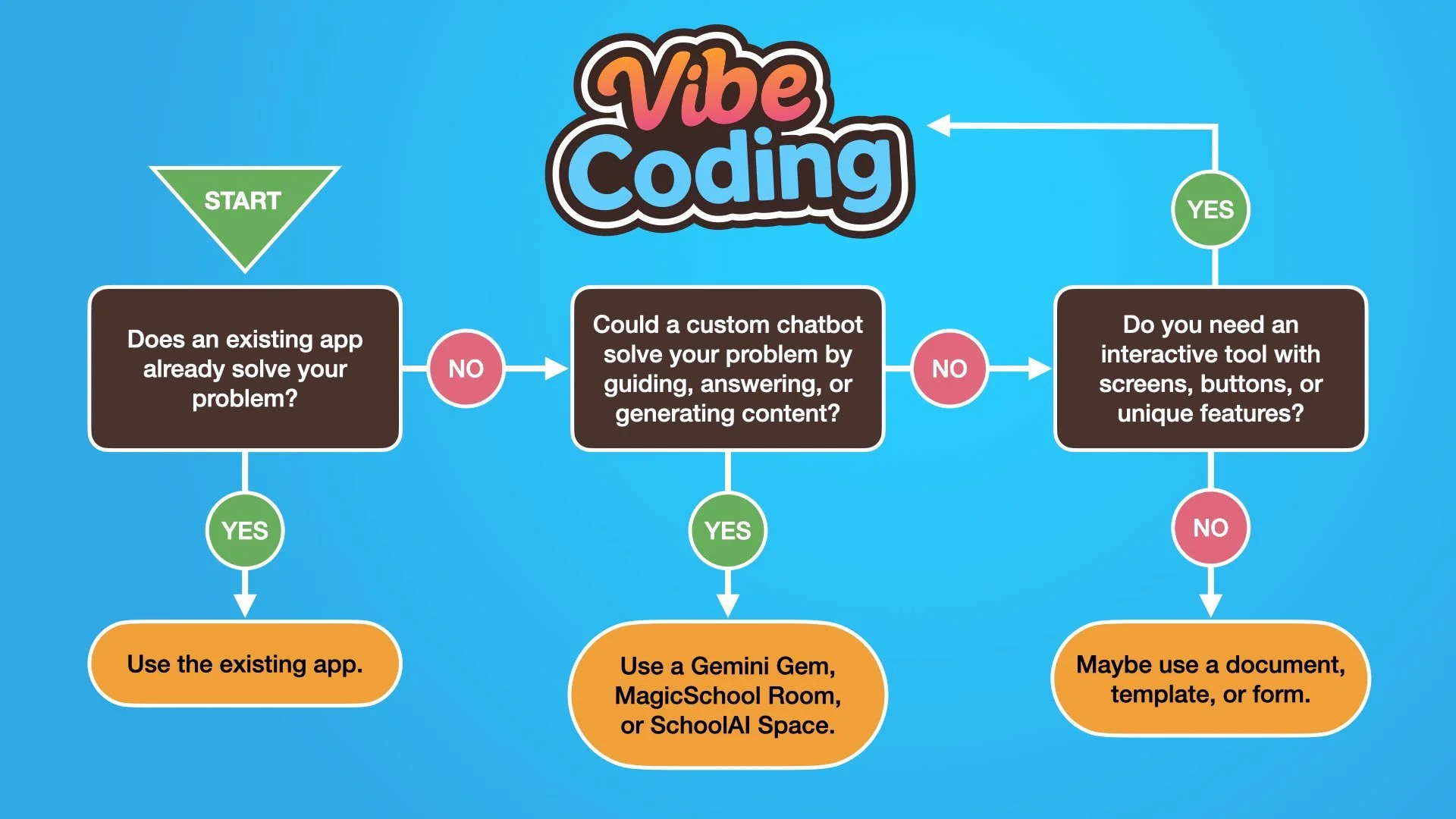
When you vibe code, you partner with an AI chatbot such as ChatGPT, Gemini, Claude, or Canva AI. You describe your idea and let the AI write the code. Then you test it, make revisions, and publish it so others can use it.
The process works for almost any idea: quizzes, games, randomizers, writing tools, spinners, pickers, or something entirely new. It allows teachers to customize digital experiences that fit their classroom goals rather than settling for pre-made apps.
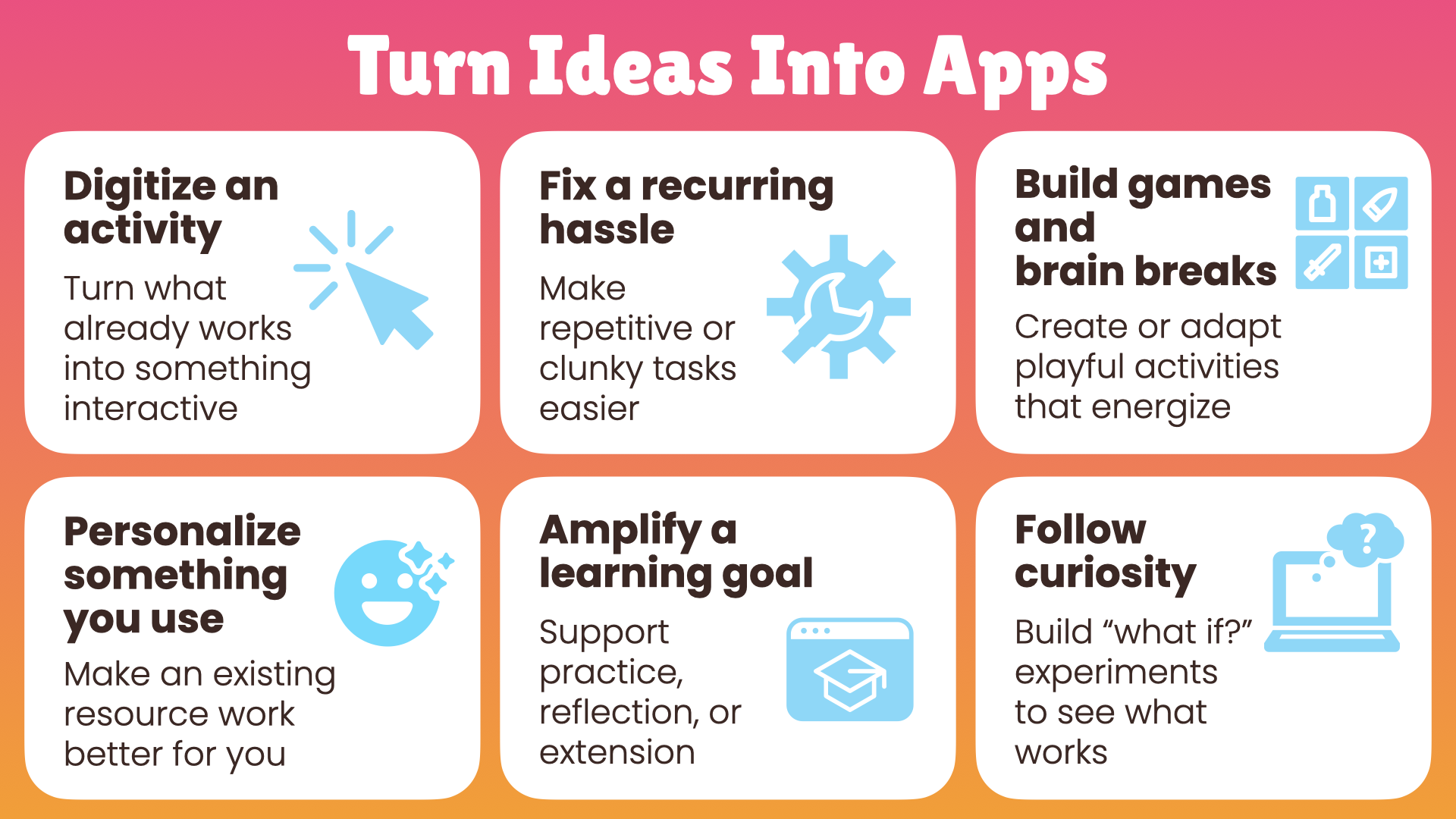
Turn Ideas into Apps
Digitize an activity
Turn what already works into something interactive.Fix a recurring hassle
Make repetitive or clunky tasks easier.Build games and brain breaks
Create or adapt playful activities that energize.Personalize something you use
Make an existing resource work better for you.Amplify a learning goal
Support practice, reflection, or extension.Follow curiosity
Build “what if?” experiments to see what works.
The Vibe Coding Process
Vibe coding follows the same structure as the Engineering Design Process.
Ask – Identify a problem or opportunity.
Imagine – Brainstorm app ideas with AI.
Plan – Define the user experience and interface.
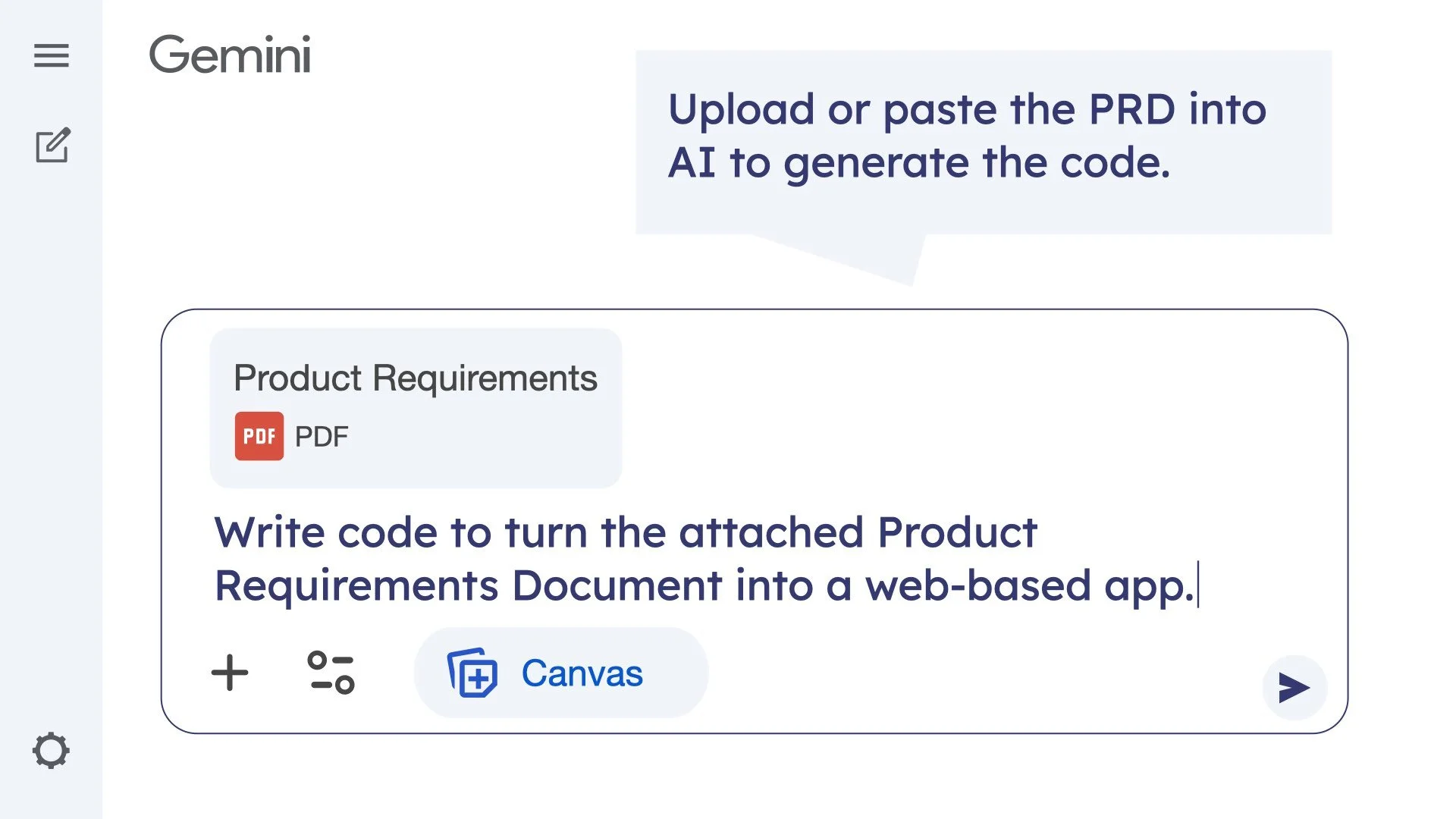
Build – Ask AI to generate the code.
Test and Improve – Run the app, revise, and refine.
Share – Publish and share your creation.
This process encourages experimentation, reflection, and steady improvement.
Read through the chat I did with Gemini to create the Angle Ace app.
How to Start
Canva AI
Go to canva.com/ai/code
Click in the Describe your idea box and click the Code button.
You might consider working with Copilot or ChatGPT first to prepare a prompt for Canva AI.
Check Your Canva AI Usage
Monitor your free monthly AI allowance on Canva’s Billing page.
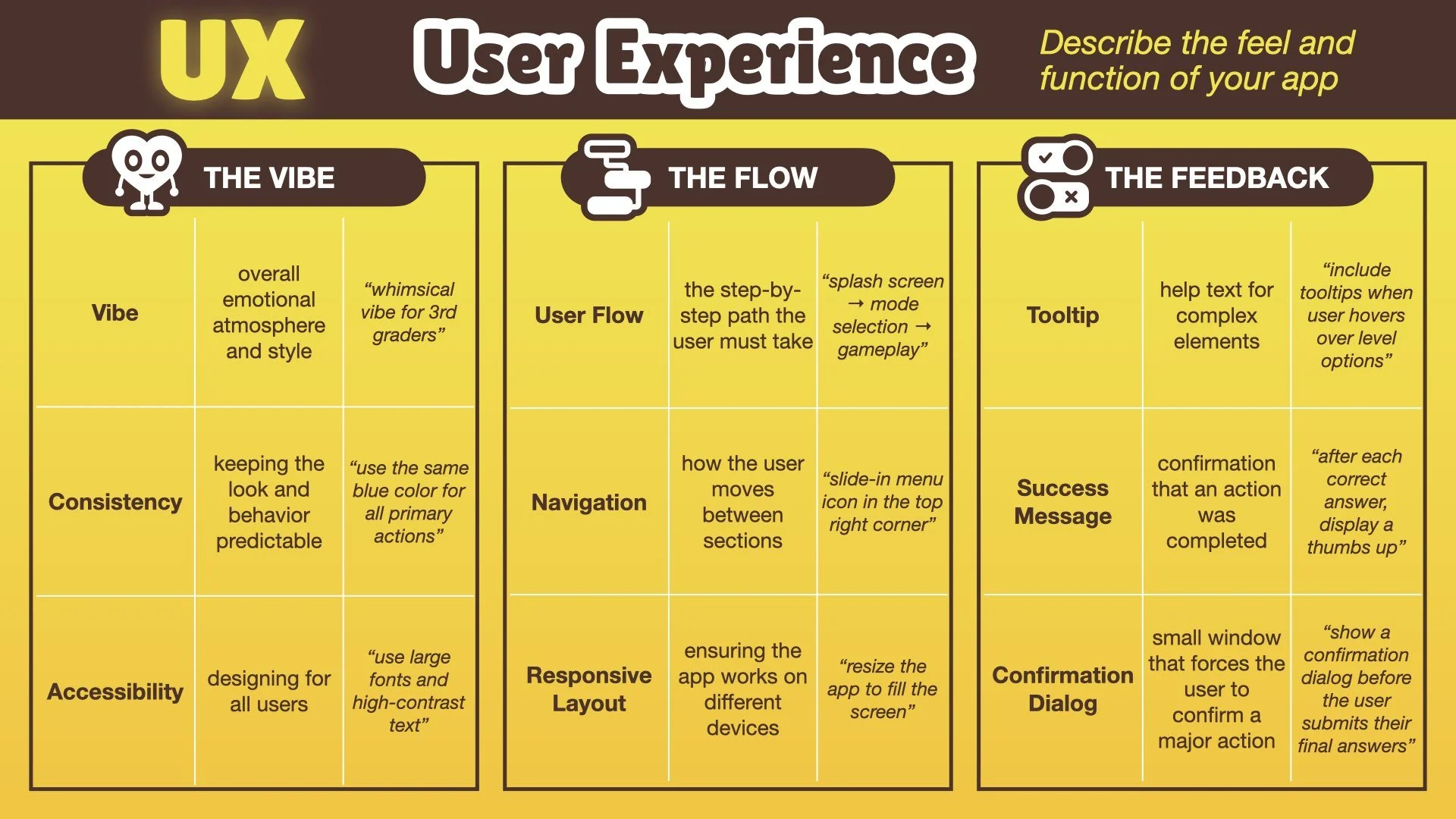
Designing the Feel and Function
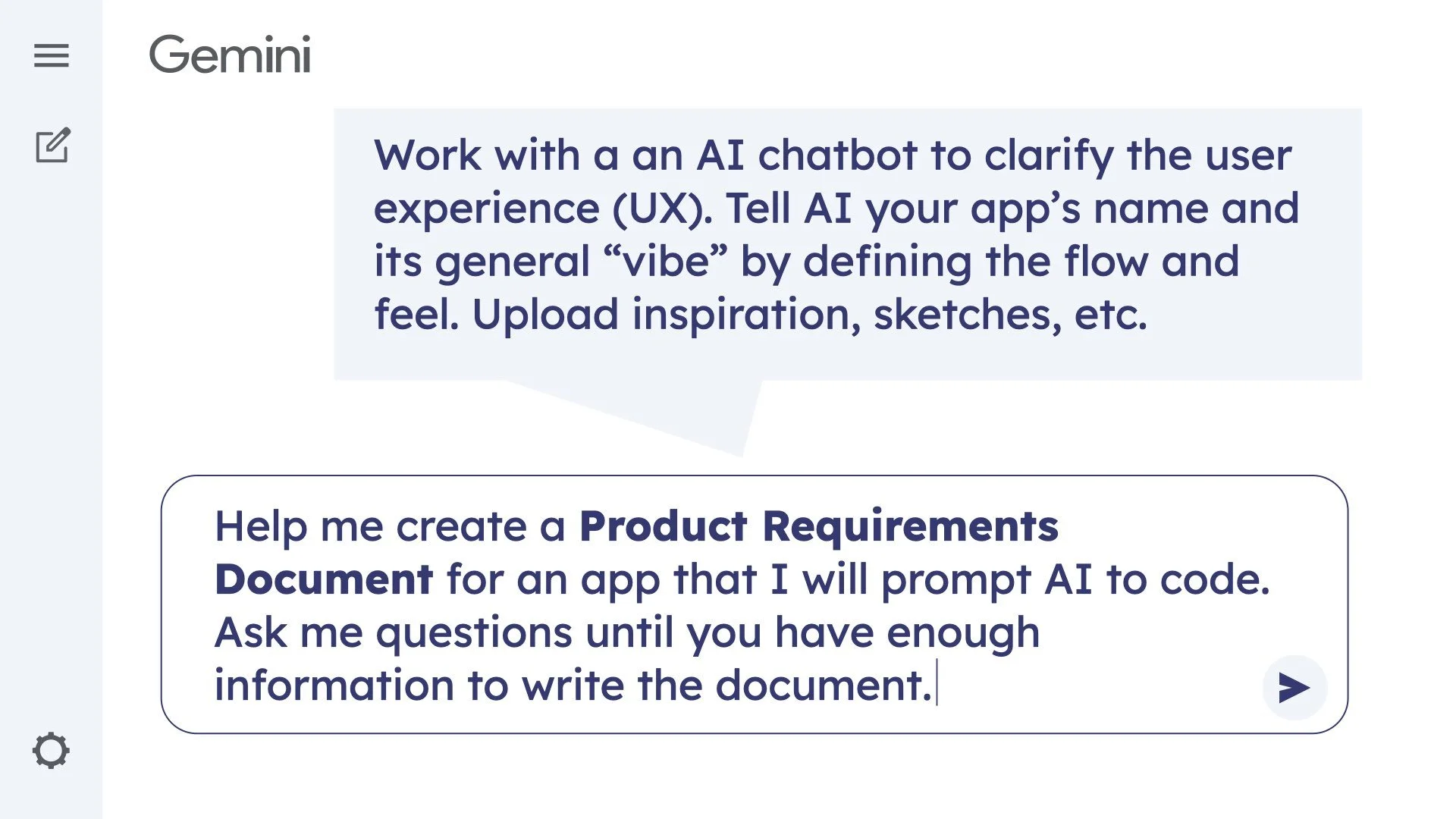
Before asking AI to code, clarify how the app should feel and how it should function.
The vibe is the overall mood or style (playful, calm, competitive, etc.).
The flow is the sequence of screens and interactions.
The feedback is how the app responds to actions, such as showing success messages or hints.
Defining these parts helps AI better understand your intent and produce results closer to what you envision.
Helpful Reference Phrases
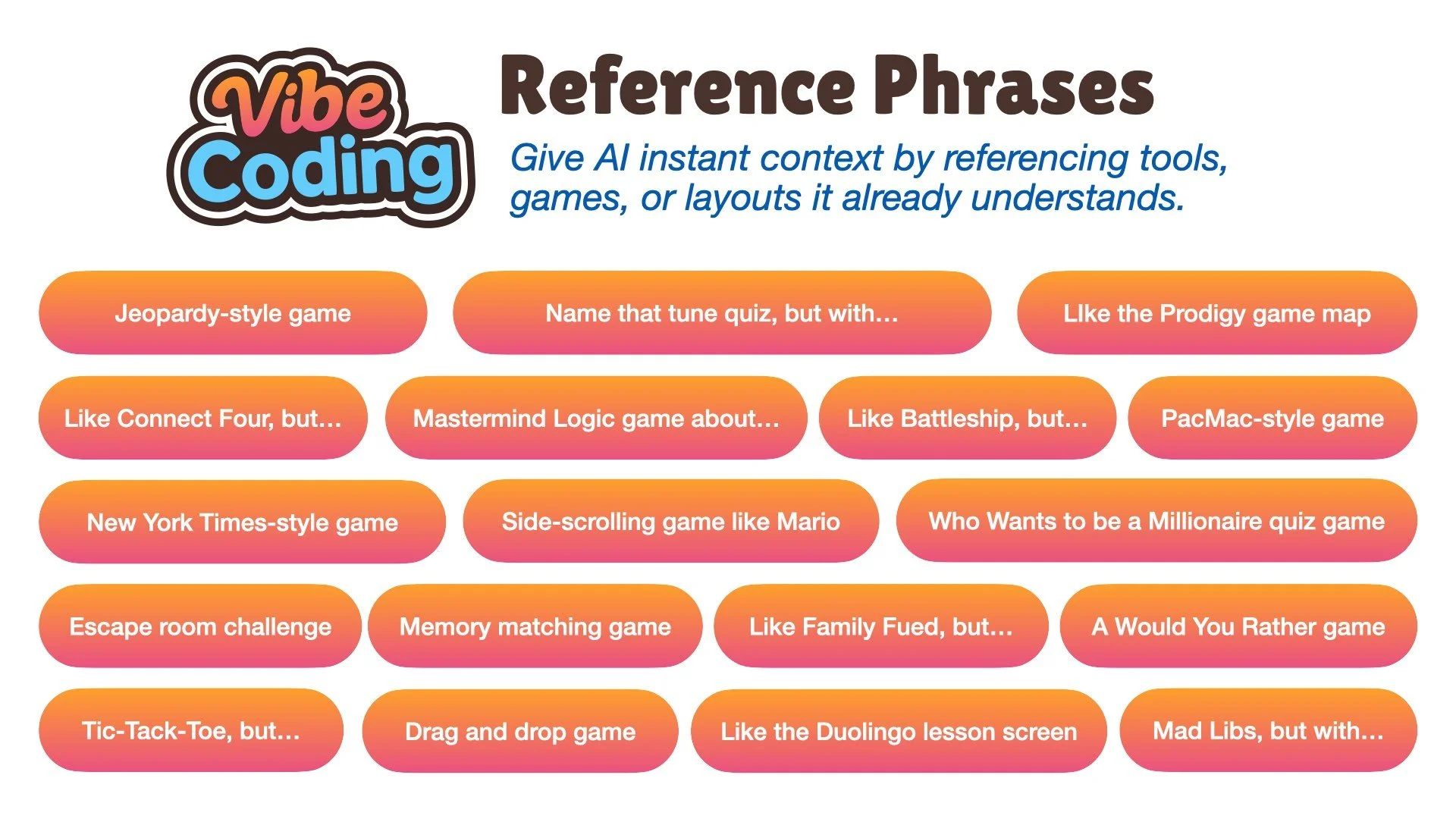
When describing an app, giving AI familiar examples helps it understand faster.
These “Reference Phrases” provide instant context:
Jeopardy-style quiz
Memory matching game
Escape room challenge
Mad Libs, but with…
Like Battleship, but…
Side-scrolling game like Mario
Tic-Tac-Toe, but…
Like the Duolingo lesson screen
Mix and match phrases to describe the mood, structure, and format you want.
Try Vibe Coding
Start your prompt with this and add details for a custom randomizer:
“Create a web app that randomly selects one item from a user-editable list.”
Start your prompt with this and add details for a custom timer:
“Create a web app that helps manage time.”
Think of a classroom idea that could be more interactive. With Canva AI, it’s often best to work with Copilot or ChatGPT to plan the app.
“I want to make an activity where students [describe what they will do]. Interview me one question at a time to plan the layout, interactions, and visual style. In the end, you’ll give me a complete prompt to use with Canva AI.”
Copy the prompt developed with Copilot or ChatGPT and paste into a new Canva AI Code chat. Test what Canva AI creates, make changes, and try again. A clear description and a little persistence can turn a simple idea into something creative, fun, and ready for the classroom.
Publishing Options
After Canva AI generates your code and you have tested your app, you can choose how to share it. Each publishing option has its own strengths and limitations.
Publish as a webpage
While previewing your app, click Publish. Enter a subpath and click Publish. Copy the live website link.
Publish in a presentation
While previewing your app, click Use in a Design and choose Presentation.
You can copy the page from this new presentation into an existing one.
Keep Learning
Join the Vibe Coding Educators Community on Facebook.
Subscribe to the Learning in Hand email newsletter.
Vibe Coded Apps Mentioned
📊 The Percent Progress Game – Visually estimate the percent of the progress bar that is shaded.
☢️ Percent Estimation Challenge - Estimate how much of a circle is shaded.
🔢 Mentally Make 1,000 – Combine numbers mentally to reach 1,000 in this math fluency challenge.
👀 Glance and Guess – Test your number sense by estimating the number of emojis on the screen
🎲 Randomizer Apps - List of examples on App Hive
⏲️ Timer Apps - Search for timers on App Hive
#️⃣ Tic Tac 15 - Draw numbers and place them on the grid. First to with 3 in a row that add to 15 wins.
💔 Heart Tangram - Fit the pieces together to form a heart.
⚙️ WebP to PNG/JPG Converter - Drop WebP files onto the page to instantly convert to PNG or JPG.
🩵 Color Heartist - Give a heart made of isosceles triangles a beautiful color scheme.
🟢 Point of Hue - Enter a thought and while it shrinks, statements appear on the screen encouraging deep breathing and shifting perspective to make something that feels big feel a little more manageable.
👻 Ghost Writer – Keep typing or your words vanish! A spooky way to spark focused, nonstop writing.
✅ Transparency Support - Be clear about AI's role in just a few clicks.
💝 Valen-Times Factor-y - Work on a chocolate factory line by matching multiplication facts.
🤔 Reflection - Get ideas for questions that prompt student reflection.
🧑🏫 Mrs. Dana’s Digitial Activities - Site with various instructional apps.
🫴 Six or Seven – A math-based guessing game where every answer is 6 or 7.
📐 Angle Ace – Practice measuring and drawing angles in an interactive geometry game.
🕵️♀️ Angle Detective - Identify mystery angles and crack the case.
💜 Heart Tangram - Piece together a heart.
🔀 WebP Converter - Change a WebP file into PNG or JPG.
💖 Color Heartist - Give a heart made of triangles a colors scheme.
🔵 Point of Hue - Enter a thought and watch it shrink away.
👻 Ghost Writer - Set a goal and keep writing or it all disappears.
💝 Valen-Times Factor-y - Practice multiplication tables by placing chocolates in a box.