|
$$PLAIN_TEXT_PREVIEW$$
|
Issue 69 • October 21, 2026
|
|
At last week’s ITEC conference in Des Moines, Iowa, I presented about AI literacy lessons I developed for my school district. As I tend to do, I slipped in a couple of dad jokes. That prompted a teacher in the audience to ask if I was the Shapegrams guy. She hadn’t recognized me until I started telling jokes. It’s no joke that this issue is full of ideas connected to Halloween. It’s the time of year when spooky shapes, creepy creatures, and a little playful movement are just what the classroom needs. Whether you’re looking for creative activities, quick brain breaks, or something fun for your students to try, there’s plenty here to get you in the Halloween spirit.
|
|
Wow! Creators on Teacher Hive really came through for the Halloween App Challenge. We had more than 20 fangtastic entries. Apps were judged on: 🎃 Halloween spirit 💡 Creativity ⚙️ How smoothly it runs 📚 Educational value 🏫 Classroom readiness
The judges evaluated the entries and these five teachers came out on top: Check out all the apps in Teacher Hive’s Halloween collection. Explore the collection to find a Halloween treat that’s just right for your students.
|
🎮 Let Students Build the Board
|
|
This issue is sponsored by Factile.
|
|
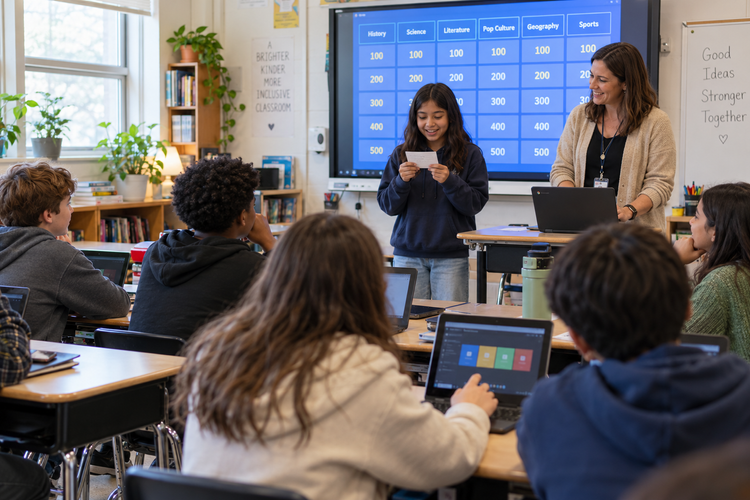
Writing a good review question takes some thinking. What should everyone know? What deserves 500 points? And could someone give a different answer that’s still correct? Those are useful conversations for students to have. So, for your next review game, let them write the questions! Factile is a Jeopardy-style game maker that turns those questions into a playable board. Students can prepare the content in a familiar spreadsheet, while you handle the game setup. No student Factile accounts needed. 📝 Start with a Spreadsheet
|
|
Give each group a category and a copy of Factile’s question template. Students can work in Google Sheets or Excel, entering a category, question, and answer for each clue. Have them write five clues, moving from easier questions to more challenging ones. Encourage students to check their answers against class materials before submitting. The discussion is part of the activity. Is that really a 500-point question, or does it just use a word nobody knows yet? 💡 Make the Clues CountShare these three tips before students begin: Build up the thinking: Start with identifying or recalling. Move toward comparing, explaining, or applying what they’ve learned. Check for one clear answer: Ask a classmate to read the clue. If two answers fit, it’s time for a rewrite. Make wrong answers useful: For a multiple-choice version, have students write plausible wrong answers based on common mistakes. Ask them to explain why each one is incorrect.
📥 From Sheets to Show TimeCombine the groups’ questions into one completed template, with up to six categories and five clues per category. Using Google Sheets? Download the finished file as Microsoft Excel (.xlsx) before importing it into Factile. Preview the board together before playing. A confusing clue can become a quick class discussion and a chance to revise. Then turn on Buzzer Mode. Students join with a game PIN and buzz in from a Chromebook, tablet, or phone. 🏆 Give Students the Microphone
|
|
Invite a student from the group that wrote a category to read its clues and explain the answers while you manage the host controls. That group sits out its own category, so classmates get the challenge. Now students have helped write, check, explain, and play the review! Try Factile free. Spreadsheet importing and Buzzer Mode require a paid plan. Paid plans come with a 7-day money-back guarantee. Privacy note: Factile does not sell personal information. Students do not need personal accounts to participate in teacher-hosted games. Read Factile’s privacy policy.
|
|
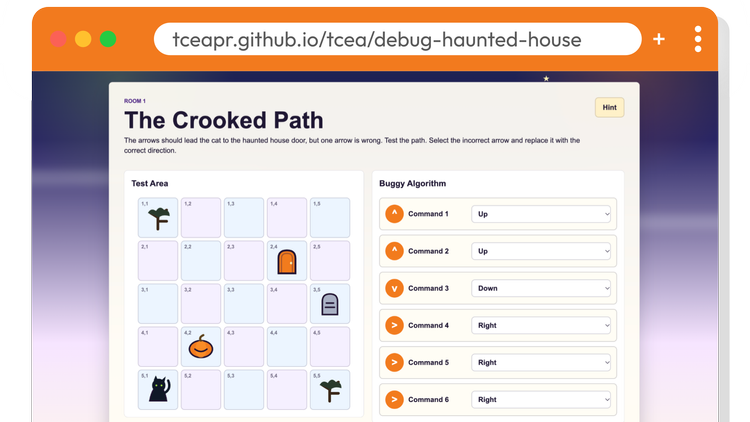
Peggy Reimers created Debug the Haunted House, a vibe-coded coding challenge for students in grades 3–5. It’s like a digital escape room, with six debugging challenges to solve before midnight. Each correct answer reveals a letter, and students put the letters together to unlock a final message. Peggy explains the activity in a recent TCEA post about computational thinking, which also includes four colorful posters teachers can use with students. The post’s comments include requests for the password to the Teacher Guide, which is built into the app and contains the answers. This brings up an interesting behind-the-scenes lesson about vibe coding. When I teach teachers about building apps with AI, I show them how passwords and answers can often be found by inspecting a page’s source code. I was able to find the Teacher Guide password this way. For a fun, low-stakes activity like this, I wouldn’t worry about passwords and answers in the code. Students in grades 3–5 are much more likely to be busy solving the spooky challenges than digging through the page’s HTML. It’s simply something to keep in mind when building apps that need to protect information.
|
|
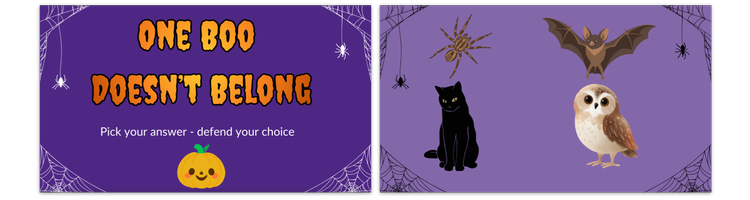
While there’s a lot you can do by coding with AI, I want teachers to know that vibe coding isn’t always the best solution. If a Google Form or slideshow can accomplish what you need, use that tool. There’s no need to reinvent something that already works. Peggy Reimers took that approach with her One Boo Doesn’t Belong activity. She made it in a Canva presentation. Each slide features four items, and students choose one that they think doesn’t belong with the other three, then explain their reasoning. The catch? There’s no single right answer. It’s a great way to get kids thinking, talking, and debating. For example, the slide below features a spider, bat, cat, and owl. Which one doesn’t belong? You might choose the spider because it’s the only arachnid. Or perhaps the owl because it’s the only one with feathers. Or maybe the spider because its name has five letters, while each of the other animals’ names has three. Each answer can spark a different conversation! Peggy shares even more seasonal activities in her TCEA post, The 2026 Halloween Lineup. Her Halloween activity roundups have become an annual tradition, so be sure to check out what she shared in 2025 and 2024, too.
|
👀 Friendly (and Festive) Forms
|
|
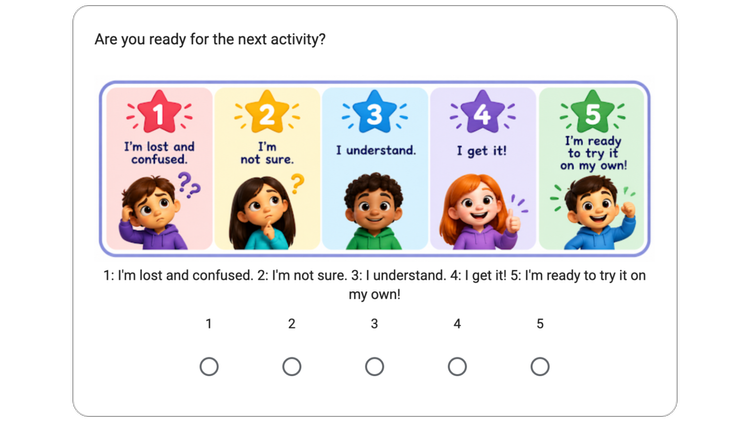
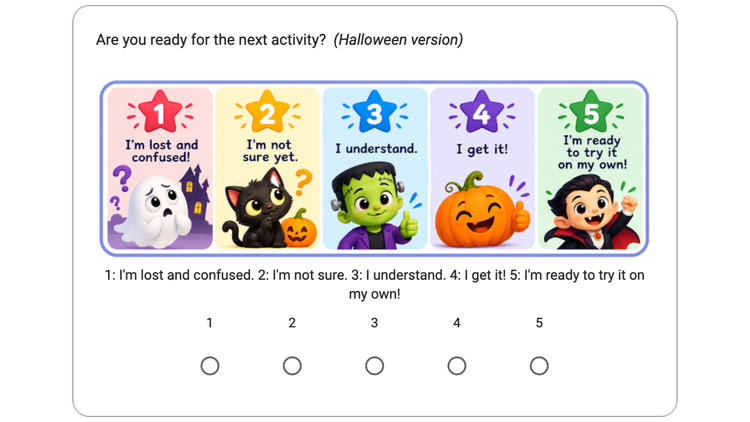
A Canva presentation worked great for Peggy’s One Boo Doesn’t Belong activity. And when you need students to submit information, Google Forms is often the right tool. Chad Laines ran into a challenge with student surveys: younger students struggled to understand what each number on a rating scale meant. Google Forms lets you label the endpoints of a linear scale, such as 1 and 5, but not the numbers in between. Chad initially considered vibe coding a solution, but collecting personally identifiable information from students brings added privacy and security responsibilities. Instead, he found a clever workaround using a feature already built into Google Forms. You can add an image to a scale or rating question. Chad uses this feature to create picture-paired survey questions, giving students a visual representation of what each number means. The pictures help students understand the choices without needing labels for every number, while teachers still benefit from Google Forms’ built-in privacy protections, real-time responses, and charts.
|
|
To try it yourself, make a copy of the Picture-Paired Survey Form to save it to your Google Drive. Then, use the Import Questions option in your own Google Form to easily bring in any of his picture-paired questions. You can also create your own! I made spooky versions of Chad’s original ones, and I included those in the Picture Paired Survey Form. To make mine, I uploaded Chad’s images to ChatGPT and asked for Halloween variations. You could also create your own in Canva or your favorite design app. This approach is especially helpful for younger learners, but it can make rating questions more intuitive for students of any age.
|
|
Shapegrams are packaged right inside Google Slides, a tool teachers and students already know. They help students in grade 3 and up learn and practice slideshow and digital design skills using a familiar tool. Halloween is Shapegrams’ busiest time of year, probably because it’s packed with Halloween pictures to recreate using shapes.
|
|
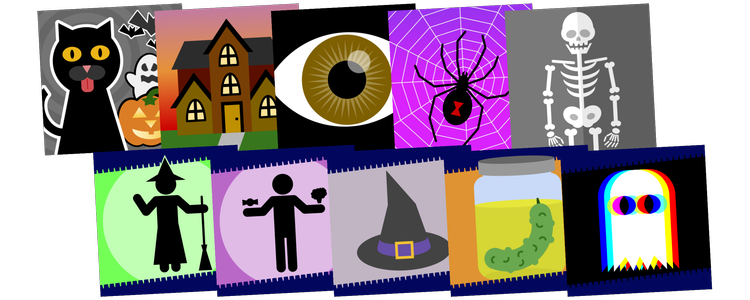
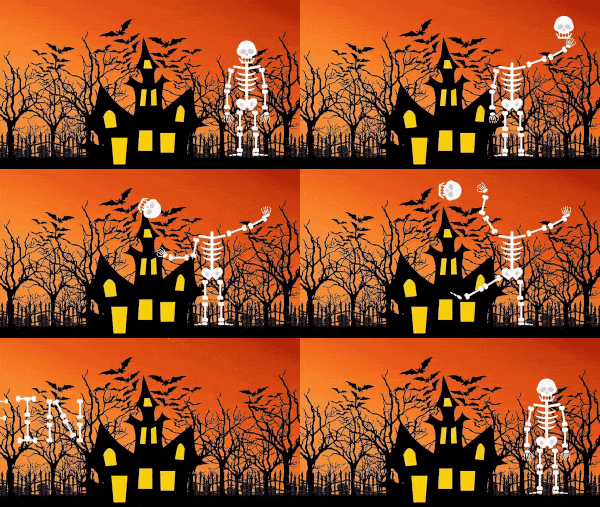
Shapegrams Lessons feature video tutorials hosted by me. Halloween-themed Lessons include Spooky Things, Mansion at Sunset, Eye, Spider Web, and Skeleton. The Skeleton Lesson is especially fun because I show students how to build a skeleton that can be posed in different positions. In the Stop Motion Lesson, students learn how to animate their drawings in Google Slides. The animation below was created by a sixth grader.
|
|
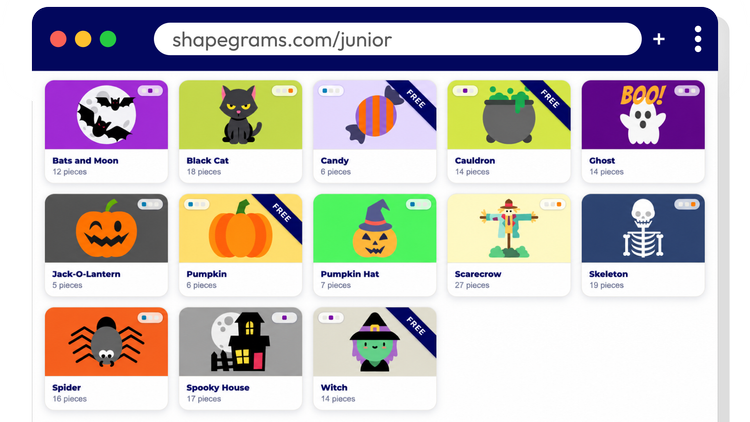
For quicker digital art challenges, Shapegrams has Zippers. Some fun October picks are Witch Icon, Which Icon, Witch’s Hat, Dill Pickle, and Glitchy Ghost. The Lessons and Zippers mentioned above require a membership, which costs just $35 per year per teacher. Because they’re built in Google Slides, students also need Google accounts. For students in grades K-3, I wanted something simpler that didn’t require Google accounts and offered built-in hints and feedback, so I vibe coded Shapegrams Junior. You can use it for free with picture puzzles of a cauldron, witch, pumpkin, and candy. Young students can practice clicking, dragging, rotating, resizing, and coloring while getting hints and feedback as they work. With Shapegrams Junior, teachers choose the pictures and play modes they want to include in a playlist, then share it with students. Read more about Shapegrams and Halloween in the latest email update and in October: Spooky, Fall & Halloween Digital Activities post.
|
|
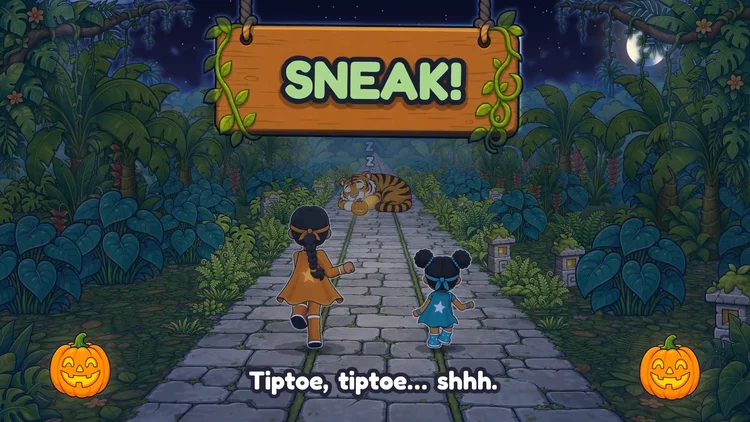
Hopadoo offers web-based games that get kids moving in front of the camera on a laptop, tablet, or phone. A few games are free to play, including Sum Run and Word Pop. Beyond its camera-based brain breaks, Hopadoo also offers Spooky Jungle Free, a YouTube video that invites the class to tiptoe through a dark jungle and freeze whenever the music stops. Designed for ages 4–8, it’s a quick, four-minute movement break with a Halloween twist.
|
|
Educators have a boo-tiful number of choices when it comes to digital activities: Use something that already exists, make it inside an app you already know, or build a whole new app. The trick is knowing which tool is right for the job. But there’s a catch: AI can be a treat when it helps us create, but a trick when we trust its answers without checking them. It’s scary that Google AI Overviews get things wrong so often. People have learned to trust the information at the top of the search results page, but now that spot often shows synthesized answers generated by AI. Funny AI Fails with Vincent Conitzer is full of examples of AI Overviews getting things wrong. One recent answer claimed that it’s entirely possible to “write on the side of a Sharpie marker using that same Sharpie because the permanent ink adheres well to the smooth plastic barrel.” Sometimes the most frightening thing on the internet isn’t a ghost, but an AI-generated answer. 😱 Spooky smiles from Iowa,
|
|
Subscribe at learninginhand.com AI gave me a hand with brainstorming, drafting, and polishing this issue. Of course, I reviewed and adjusted everything before sharing it with you. Let's learn together. Bring me to your school, district, or conference. Reply to this email and let’s talk.
|
|
|
|