|
AI stickers, vibe-coded games, classroom tools, and ideas worth trying. ͏ ͏ ͏ ͏ ͏ ͏ ͏ ͏ ͏ ͏ ͏ ͏ ͏ ͏ ͏ ͏ ͏ ͏ ͏ ͏ ͏ ͏ ͏ ͏ ͏ ͏ ͏ ͏ ͏ ͏ ͏ ͏ ͏ ͏ ͏ ͏ ͏ ͏ ͏ ͏ ͏ ͏ ͏ ͏ ͏ ͏ ͏ ͏ ͏ ͏ ͏ ͏ ͏ ͏ ͏ ͏ ͏ ͏ ͏ ͏ ͏ ͏ ͏ ͏ ͏ ͏ ͏ ͏ ͏ ͏ ͏ ͏ ͏ ͏ ͏ ͏ ͏ ͏ ͏ ͏ ͏ ͏ ͏ ͏ ͏ ͏ ͏ ͏ ͏ ͏ ͏ ͏ ͏ ͏ ͏ ͏ ͏ ͏ ͏ ͏ ͏ ͏ ͏ ͏ ͏ ͏ ͏ ͏ ͏ ͏ ͏ ͏ ͏ ͏ ͏ ͏ ͏ ͏ ͏ ͏ ͏ ͏ ͏ ͏ ͏ ͏ ͏ ͏ ͏ ͏ ͏ ͏ ͏ ͏ ͏ ͏ ͏ ͏ ͏ ͏ ͏ ͏ ͏ ͏ ͏ ͏ ͏ ͏ ͏ ͏ ͏ ͏ ͏ ͏ ͏ ͏ ͏ ͏ ͏ ͏ ͏ ͏ ͏ ͏ ͏ ͏ ͏ ͏ ͏ ͏ ͏ ͏ ͏ ͏ ͏ ͏ ͏ ͏ ͏ ͏ ͏ ͏ ͏ ͏ ͏ ͏ ͏ ͏ ͏ ͏ ͏ ͏ ͏ ͏ ͏ ͏ ͏ ͏ ͏ ͏ ͏ ͏ ͏ ͏ ͏ ͏ ͏ ͏ ͏ ͏ ͏ ͏ ͏ ͏ ͏ ͏ ͏ ͏ ͏ ͏ ͏ ͏ ͏ ͏ ͏ ͏ ͏ ͏ ͏ ͏ ͏ ͏ ͏ ͏ ͏ ͏ ͏ ͏ ͏ ͏ ͏ ͏ ͏ ͏ ͏ ͏ ͏ ͏ ͏ ͏ ͏ ͏ ͏ ͏ ͏
|
Issue 65 • Date August 26, 2026
|
|
This month I lead a series of AI literacy sessions for my local school district. Teachers registered for each session, so I knew approximately how many to expect. Sizes ranged from 6 to 60. The thing is, the conference center room had seating for 90. My approach to AI literacy involves curiosity and conversation, so I wanted to make sure that people gathered at tables near the front. My first thought was to make Reserved signs to block off tables, but often people still sit at a reserved table, perhaps thinking it’s reserved for them? I brainstormed various wording I could put on the signs. Instead of reserved, the signs read: Choose your seat. Just not at this table. Thank you. Please do not sit at this table. You’ll find out why soon. Walk past this table. Sit somewhere else. Thank you. Keep calm. Choose a different table. Congratulations! You found the table you should not sit at. Thank you for sitting elsewhere. Choose a different table. It will be okay. Thank you.
|
|
There were lots of comments about liking the signs. They also liked my 3D printed traffic cones and card holders. All this did the trick. Participants sat at tables at the front, and we did indeed have great conversations.
|
|
I placed welcoming signs on the tables where I wanted my workshop participants to sit. The signs asked teachers to make name cards and choose a sticker that showed how they think or feel about AI.
|
|
The colorful stickers represent an array of attitudes toward AI. For many teachers, choosing just one was hard because several resonated with them. Click to see the stickers larger.
|
|
As a quick introduction, each teacher briefly explained why they chose the sticker on their name card. It gave everyone a chance to share a little about their perspective before we got started. I worked with ChatGPT to come up with the words for the stickers. That part didn't take long. What took a while was getting ChatGPT to generate the artwork with the thick outline and transparent background needed to give it that sticker look. It turns out that ChatGPT and Gemini both struggle with this. My workaround was to ask for just the sticker's words and artwork. I then placed each one in Canva, removed the background, and added the outline. This was much faster than trying to convince an AI image generator to create transparent backgrounds, thick outlines, and no drop shadows. Here's the image prompt I used: Create a bold, colorful cartoon illustration of the words [sticker message] above a cartoon of a [sticker illustration/artwork]. Use simple, chunky shapes, clean smooth lines, and minimal detail. Make all parts sturdy and clearly connected, with broad connections rather than thin sections. Use playful, exaggerated proportions and a polished vector-illustration look. Place the illustration on a plain solid white background.
|
|
In my workshops, I spend time showing teachers how to display AI literacy lesson slides on their classroom screens while they view the speaker notes on their Chromebooks. It takes several steps to set up, so I wanted a one-pager teachers could easily follow. I first tried having ChatGPT and Gemini create it. That didn't turn out well. Sometimes AI flyers look awesome, and they're getting better at getting the information right. But what AI made for me missed the mark. I designed my own one-pager in Google Slides (that's where I do a lot of my design work). I did have AI redraw my screenshots as black line drawings since my flyer is designed to be printed in black and white.
|
|
Maybe my one-pager can be a useful reference for you, too. I love Presenter View. Seeing the next slide and my speaker notes on my screen helps me move smoothly from one slide to the next while keeping helpful reminders close at hand.
|
|
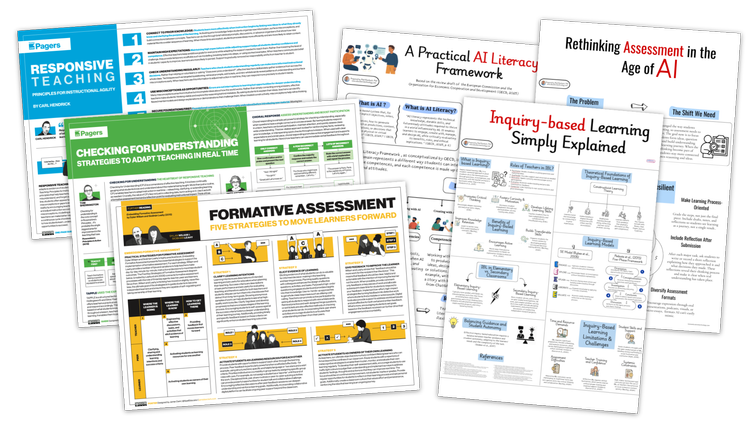
I love a well-designed, thoughtful one-pager. The way text is arranged and styled can play just as important a role as the words themselves. Jamie Clark creates wonderfully useful visual guides about teaching and learning. His free resources cover responsive teaching, whole-class feedback, instructional design, study strategies, and much more. I also highly recommend subscribing to Jamie's newsletter, DistillEd. His archive is worth exploring, with plenty of ideas and insights to discover. Med Kharbach has another impressive collection of visual guides for educators. His resources explore topics including AI ethics, assessment, pedagogy, literacies, and research methodologies.
|
|
I watch the TV show Big Brother, and my family is a bit obsessed with it. A recent competition had HouseGuests crossing a bridge by choosing between two tiles. Green let them move forward, while red sent them back to the beginning. I knew I had to vibe code a digital version. I call mine Tile and Error. Pick a tile in each column and light your path from start to finish. Choose green to keep going. Hit red, and you're back at the beginning. Gemini coded the game for me, and it's published on Teacher Hive, which means I could add a global leaderboard. See if your guesses and memory are good enough to make the Best Runs!
|
|
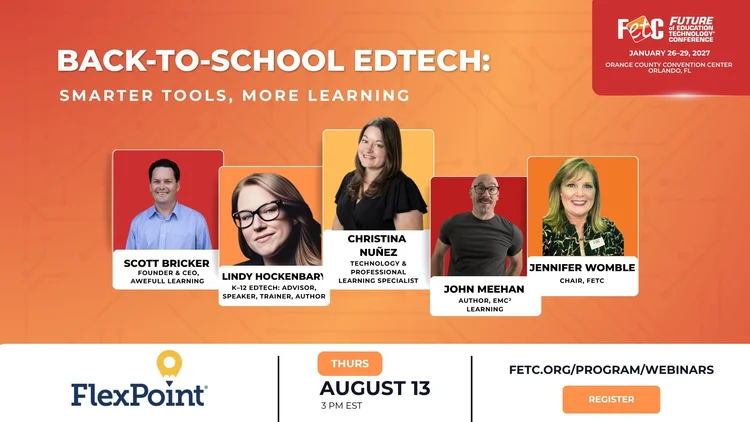
FETC's Back-to-School EdTech: Smarter Tools, More Learning webinar took place August 13, and I caught the recording. Scott Bricker, Lindy Hockenbary, John Meehan, and Christina Núñez packed 75 minutes with ideas worth trying as we head into a new school year. Scott Bricker shared Microsoft Copilot's Study and Learn mode, which guides students through problems instead of simply giving them answers. It asks questions, offers hints, and encourages students to work through the process. Scott even demonstrated it making an incorrect graph, providing a nice reminder to trust, but verify. Copilot's Study and Learn is very similar to Gemini's Guided Learning mode. Lindy Hockenbary showed how Google Quick, Draw! can give students a peek behind the AI curtain. They can explore the doodles used to train the model and see how AI makes predictions by finding patterns. She also demonstrated Teachable Machine, where students create their own simple AI models and discover what happens when their training data isn't quite right. John Meehan suggested using random icons from The Noun Project as thinking prompts. Students might use an icon to recap a reading, predict what's coming, or make a connection. Because an image doesn't have a reading level, it's an easy way to get everyone talking. Christina Núñez demonstrated Gemini Canvas, using it to turn classroom expectations into an interactive game. A student even created their own version after deciding the teacher's game was "lame." She also showed how Gemini Notebook can transform documents such as a student handbook into resources like podcasts and conversations. Her district created translated handbook podcasts for families. A few ideas that stand out: Start with the problem, not the tool. Christina warned about falling down the "AI rabbit hole." It's easy to get excited about what a tool can do and forget to ask whether we actually need it. Make room for thinking. Scott made a case for protecting time to think, reflect, and even be bored. When AI can instantly generate the next thing, unstructured thinking time may be more important than ever. Treat play as a learning strategy. John emphasized that playful learning isn't just about adding games. It's a mindset that can make learning more engaging without necessarily creating more work for the teacher.
If you get a chance, watch the entire recording. Low on time? Speed it up! You can get through a 75-minute webinar surprisingly quickly that way.
|
🎛️ Classroom Command Center
|
|
One back-to-school tool I want tell you about is HomeRoom. Fifth grade teacher Jeff Hennigar started building HomeRoom after discovering vibe coding. What began as a simple tool for randomly assigning groups evolved into a classroom dashboard and day planner filled with the tools he wanted to use every day. HomeRoom puts timers, spinners, group makers, games, discussion boards, polls, exit tickets, and other classroom tools on one screen. But the feature that really caught my attention is the remote control. Open HomeRoom on your classroom display, then use your phone or tablet as a remote. You can change what's on the screen while you're sitting with your students, switch from a morning meeting prompt to a math activity, or dim the display when you want everyone's attention. The dashboard isn't just for displaying things, either. Students can visit join.ourhomeroom.app and enter a class code to submit exit tickets, answer polls, or participate in discussion boards. Think of it as some of the functionality you might use in tools like Padlet built right into your classroom dashboard. The built-in planner connects to the dashboard, too. Plan your lessons in HomeRoom, and learning targets can automatically appear on the classroom display at the appropriate time. You can even rearrange lessons when the schedule inevitably changes. There's a free version you can use to explore HomeRoom, while the Pro version unlocks the full collection of tools and planning features. New users get two months to try Pro, and the annual subscription is $20.
|
|
AI can help us do all sorts of things, from designing stickers to building apps. But, AI has its drawbacks, too. In one of my presentations, I show that concerns about AI's pitfalls aren't new.
|
|
A 1973 episode of the Super Friends has the heroes tour an enormous data center run by the eccentric Professor Goodfellow. His Goodfellow's Effort Eliminating Computer (GEEC) is designed to take over all the mental and physical tasks of humans. You can watch about five minutes of the 40-minute episode on YouTube. Smiles from Iowa,
|
|
Subscribe at learninginhand.com AI gave me a hand with brainstorming, drafting, and polishing this issue. Of course, I reviewed and adjusted everything before sharing it with you. Let's learn together. Bring me to your school, district, or conference. Reply to this email and let’s talk.
|
|
|
|