|
Wayground accommodations, Size of Life, and a new Classy workshop ͏ ͏ ͏ ͏ ͏ ͏ ͏ ͏ ͏ ͏ ͏ ͏ ͏ ͏ ͏ ͏ ͏ ͏ ͏ ͏ ͏ ͏ ͏ ͏ ͏ ͏ ͏ ͏ ͏ ͏ ͏ ͏ ͏ ͏ ͏ ͏ ͏ ͏ ͏ ͏ ͏ ͏ ͏ ͏ ͏ ͏ ͏ ͏ ͏ ͏ ͏ ͏ ͏ ͏ ͏ ͏ ͏ ͏ ͏ ͏ ͏ ͏ ͏ ͏ ͏ ͏ ͏ ͏ ͏ ͏ ͏ ͏ ͏ ͏ ͏ ͏ ͏ ͏ ͏ ͏ ͏ ͏ ͏ ͏ ͏ ͏ ͏ ͏ ͏ ͏ ͏ ͏ ͏ ͏ ͏ ͏ ͏ ͏ ͏ ͏ ͏ ͏ ͏ ͏ ͏ ͏ ͏ ͏ ͏ ͏ ͏ ͏ ͏ ͏ ͏ ͏ ͏ ͏ ͏ ͏ ͏ ͏ ͏ ͏ ͏ ͏ ͏ ͏ ͏ ͏ ͏ ͏ ͏ ͏ ͏ ͏ ͏ ͏ ͏ ͏ ͏ ͏ ͏ ͏ ͏ ͏ ͏ ͏ ͏ ͏ ͏ ͏ ͏ ͏ ͏ ͏ ͏ ͏ ͏ ͏ ͏ ͏ ͏ ͏ ͏ ͏ ͏ ͏ ͏ ͏ ͏ ͏ ͏ ͏ ͏ ͏ ͏ ͏ ͏ ͏ ͏ ͏ ͏ ͏ ͏ ͏ ͏ ͏ ͏ ͏ ͏ ͏ ͏ ͏ ͏ ͏ ͏ ͏ ͏ ͏ ͏ ͏ ͏ ͏ ͏ ͏ ͏ ͏ ͏ ͏ ͏ ͏ ͏ ͏ ͏ ͏ ͏ ͏ ͏ ͏ ͏ ͏ ͏ ͏ ͏ ͏ ͏ ͏ ͏ ͏ ͏ ͏ ͏ ͏ ͏ ͏ ͏ ͏ ͏ ͏ ͏ ͏ ͏ ͏ ͏ ͏ ͏ ͏ ͏ ͏ ͏ ͏ ͏ ͏ ͏
|
Issue 50 • January 7, 2026
|
|
Happy 2026! My family and I had a wonderful winter break. I personally ate too much, slept too much, and played Fortnite too much. Breaks are important, and I’m energized to tackle some big goals this year. While I have a lot on my plate, I’m keeping this newsletter a priority. Beyond helping other educators, this newsletter helps me. Curating content and taking the time to write about it is a key part of my own professional learning. Writing a newsletter allows me to think through ideas, uncover a resource’s real value, and slow down enough to really learn. If any of that thinking helps you save time, spark an idea, or feel a little more energized heading into the year, then it’s time well spent for both of us.
|
|
I made a Google Form where a student’s response must be shorter than 53 characters. If they enter 54 or more, the form will not submit. I use this form to collect summaries, and since I like rhymes, I’ve named it Less Than 53 Characters Summary. Want to see it in action? Give it a try by summarizing your winter break. Below is my own < 53 summary: “Family, friends, food, Fortnite, and looking ahead to 2026.” A good summary is an act of prioritization, and prioritizing ideas requires reflection and strengthens understanding. Choosing what to keep helps students make sense of what they learned or experienced. The form uses Response Validation in Google Forms. When it’s turned on, you can set a maximum character count. Yours doesn’t have to be 53, but if you’re aiming for forced prioritization, keeping it under 100 works well. You can also add a custom error message. Be sure to make the question required so students can’t skip it.
|
|
If you don’t want to fuss with setting one up yourself, you’re welcome to copy my < 53 Summary template. This kind of form makes for a great check for understanding or exit ticket. It’s quick to read, easy to assess, and encourages real thinking.
|
|
One of my favorite memories of 2025 was heading to the playground with Pony Vincent. It was a silly and fun way to announce that Quizizz had changed its name to Wayground. Wayground is still the same platform teachers know for quiz games and interactive activities. The new name reflects their goal of helping teachers reach all students in a way that feels playful, flexible, and welcoming, much like a playground. A Wayground Individual (Super) Plan, which includes unlimited storage and key feature unlocks, costs $216 per year. When a school or district isn’t covering the cost, that price puts the plan out of reach for many teachers, leading them to rely on the free Starter plan instead. Free plans are limited to 20 total resources and do not include some question types, such as Match, Reorder, and Video Response. However, free accounts can now access all accommodations. That’s a meaningful change. It helps Wayground live up to its new name and supports students in helpful ways. Teachers can assign the same activity to the whole class while still providing scaffolded and differentiated supports within a single session. So what kinds of accommodations can you toggle on for specific learners? Quite a few: ⏱️ Extra Time for Questions 📖 Read Aloud 🔄 Extra Attempts 🔢 Reduce Answer Choices 🔤 Dyslexia Font 🔠 Font Size 📚 Reading Mode 📆 Extended Deadline 🎯 Redemption Question 💡 Hints 🧮 Scientific and Graphing Calculators 🌐 Translate 📓 Bilingual Dictionary ↔️ Font Spacing 📝 Note to Refer 🚫 Don’t Show Leaderboard 🔇 Turn Off Sound Effects 🌗 Toggle Light and Dark Modes
Here’s how Wayground describes it on the Set Up Accommodations screen: “Stop making five versions of every worksheet. Set individual supports, like Read Aloud, Hints, or Reduced Answer Choices, just once per student. Wayground applies them automatically and discreetly, so every student can access grade-level content without being singled out.”
|
|
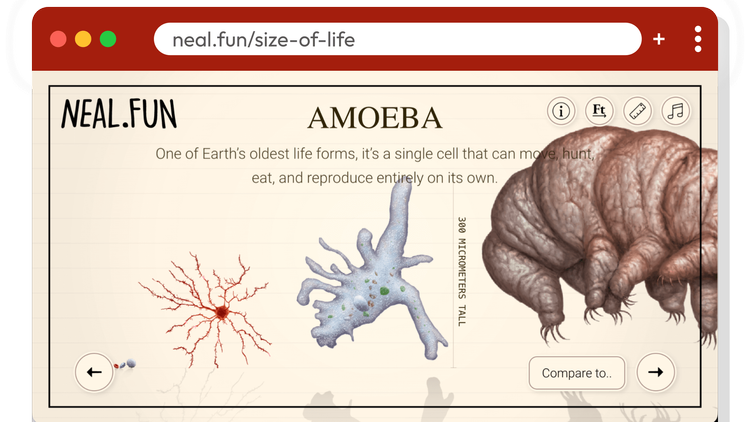
Neal Agarwal has added yet another fun interactive to Neal.fun. Size of Life compares the sizes of many different living things in a simple, scrollable experience. It starts with DNA at just 3.5 nanometers tall. Pressing the right arrow key slides you to the next life form and slowly zooms out. You can keep moving through dozens of organisms until you reach the largest on the list, the Pando clone, which spans 108 acres. Julius Csotonyi’s illustrations, paired with music by Iratxe Ibaibarriaga, make the whole experience feel elegantly surreal. I’ve added Size of Life to the Cognitive section of my Digital Snack collection.
|
|
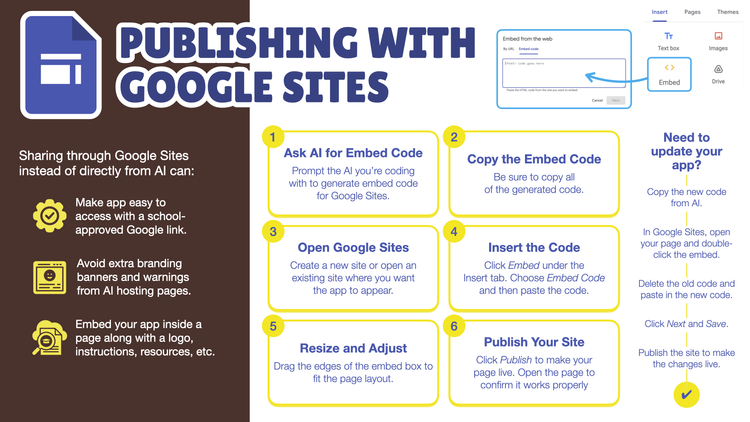
Neal.fun’s Size of Life has a human touch. It obviously took hundreds of hours to create the illustrations, music, and interactivity. I’m grateful for online experiences like this one. Most educators don’t have the time or technical skills to build something like this from scratch. That’s where AI can help. Tools like Google Gemini, ChatGPT, Claude, and Canva AI can create digital tools, activities, and games based on your prompt. You describe your idea, and within minutes you have a working starting point. From there, you can ask follow-up questions to tweak, revise, and improve. This approach is often called vibe coding. When you’re done iterating, you can sometimes share the tool directly from the AI. That’s what I did with this Glance and Guess game I made with Claude. It’s shared directly from Claude. Unfortunately, there is a strong chance that a link shared from an AI chatbot will be blocked on student computers. Another limitation: when using Gemini while logged into a school Google account, you can’t directly share what you’ve created. Google says this is for privacy reasons. One workaround is to copy the code and paste it into a Google Site. I’m sharing a slide from my Vibe Coding presentation that walks through this.
|
|
Vibe coding is my favorite way to use AI. It lets me create things I wouldn’t be able to make on my own. You can see examples of what I’ve been building in Tony’s App Lab. The Vibe Coding Educators Community on Facebook is a place where teachers share questions, small wins, and lessons learned. I don’t know if the term “vibe coding” will stick, but I do think educators using AI to create custom learning tools will be a big part of 2026.
|
|
Ditch Summit, the free video-on-demand online event, is live until January 11th. You only have a few days to access the videos, one of which is an interview with Greg Bagby and me called Vibe Coding: It's Amazing What YOU Can Create.
|
|
If you’re interested in vibe coding, I’d like to invite you to join Classy Vibing with AI. It’s been nearly two full years since I led a “Classy” online course, and I’m genuinely excited to offer a new one. Vibe coding is a great fit for the way I run Classy classes. The “classy” part isn’t really about making something stylish. It’s more about becoming a classmate in the class. You show up with ideas, try things out, share your work, and learn alongside other educators. You don’t have to know anything about coding. Just bring your ideas. The four-week online workshop begins February 18, 2026. 👉 Read more and register!
|
|
Setting up a collaborative Google Slides file where each student gets their own slide is a handy move for jigsaws, exit tickets, brainstorming, shoutouts, and other activities where students share work with the class. As a teacher, it’s also nice to have every student response in one place. As a bonus, you can use Grid view in Google Slides as a simple dashboard to quickly check student progress. Chad Laines, Instructional Technology Specialist at ABC Unified School District, emailed me a great time saver. He suggested using Google Gemini to create a slide deck with one student name per slide. Gemini recently added the ability to create Google Slides. To try this, go to gemini.google.com and select Canvas from the Tools menu. Chad used this prompt: Create a Google Slides deck with one name from the list on each slide. Place the name at the top of the slide to allow for additional content creation on the blank slide. Place slides in alphabetical order by last name. [Paste class roster or participants list.]
The slides appear in Gemini’s Canvas. Gemini may add extra elements or wording you do not want, so follow up with another prompt asking it to remove or change anything unnecessary. Once the slides look right, click Export to Slides button. After processing, click Open Slides at the bottom of the screen. You now have a fully editable Google Slides deck you can share with students, with each student already assigned their own slide.
|
|
A note on student names: If you are using Gemini while logged into a Google Workspace for Education account, it has the same core privacy protections as Google Slides. Personal Google accounts do not have the same policies, so don’t put PII (personally identifiable information) into Gemini when logged into a personal account. You can ask for more than just names on the slides. Chad mentioned “seasoning” them with seasonal emojis. More ideas include: Rotating background colors among the slides Specifying fonts or graphics Randomizing partners and placing group names on slides Randomly assigning vocabulary words or concepts Including a specific graphic organizer on each slide Adding sentence starters or reflection prompts Placing a required image placeholder or shape students must use
This is a simple way to save setup time while still giving students structure and ownership. Thank you Chad Laines for this superb idea! Check out this ABCs of AI podcast.
|
Teaching, Not Telling 🧑🏫
|
|
When Guided Learning is turned on in Google Gemini, the chatbot shifts from simply giving answers to helping students learn. It provides step-by-step support, explanations, and feedback, making AI a learning partner instead of an answer machine. Students can turn on Guided Learning by clicking the Tools button just below the text input field and selecting Guided Learning. I’ve been sharing 3D-printed Guided Learning magnets with teachers I work with. They serve as simple reminders to switch Gemini from its default, answers-only mode to instructional mode.
|
|
The Guided Learning reminder doesn’t have to be 3D printed. I also made a poster you can download and print.
|
|
Teachers may also want to share this direct link with students, which opens Gemini with Guided Learning already turned on: gemini.google.com/guided-learning.
|
|
This newsletter is part of how I learn and reflect. If it helps you too, please pass it along. I’d love to reach more educators. Smiles from Iowa,
|
|
Subscribe at learninginhand.com AI gave me a hand with brainstorming, drafting, and polishing this issue. Of course, I reviewed and adjusted everything before sharing it with you.
|
|
|
|