|
All about QR codes and short links! ͏ ͏ ͏ ͏ ͏ ͏ ͏ ͏ ͏ ͏ ͏ ͏ ͏ ͏ ͏ ͏ ͏ ͏ ͏ ͏ ͏ ͏ ͏ ͏ ͏ ͏ ͏ ͏ ͏ ͏ ͏ ͏ ͏ ͏ ͏ ͏ ͏ ͏ ͏ ͏ ͏ ͏ ͏ ͏ ͏ ͏ ͏ ͏ ͏ ͏ ͏ ͏ ͏ ͏ ͏ ͏ ͏ ͏ ͏ ͏ ͏ ͏ ͏ ͏ ͏ ͏ ͏ ͏ ͏ ͏ ͏ ͏ ͏ ͏ ͏ ͏ ͏ ͏ ͏ ͏ ͏ ͏ ͏ ͏ ͏ ͏ ͏ ͏ ͏ ͏ ͏ ͏ ͏ ͏ ͏ ͏ ͏ ͏ ͏ ͏ ͏ ͏ ͏ ͏ ͏ ͏ ͏ ͏ ͏ ͏ ͏ ͏ ͏ ͏ ͏ ͏ ͏ ͏ ͏ ͏ ͏ ͏ ͏ ͏ ͏ ͏ ͏ ͏ ͏ ͏ ͏ ͏ ͏ ͏ ͏ ͏ ͏ ͏ ͏ ͏ ͏ ͏ ͏ ͏ ͏ ͏ ͏ ͏ ͏ ͏ ͏ ͏ ͏ ͏ ͏ ͏ ͏ ͏ ͏ ͏ ͏ ͏ ͏ ͏ ͏ ͏ ͏ ͏ ͏ ͏ ͏ ͏ ͏ ͏ ͏ ͏ ͏ ͏ ͏ ͏ ͏ ͏ ͏ ͏ ͏ ͏ ͏ ͏ ͏ ͏ ͏ ͏ ͏ ͏ ͏ ͏ ͏ ͏ ͏ ͏ ͏ ͏ ͏ ͏ ͏ ͏ ͏ ͏ ͏ ͏ ͏ ͏ ͏ ͏ ͏ ͏ ͏ ͏ ͏ ͏ ͏ ͏ ͏ ͏ ͏ ͏ ͏ ͏ ͏ ͏ ͏ ͏ ͏ ͏ ͏ ͏ ͏ ͏ ͏ ͏ ͏ ͏ ͏ ͏ ͏ ͏ ͏ ͏ ͏ ͏ ͏ ͏ ͏ ͏ ͏
|
Issue 66 • September 9, 2026
|
|
How about some QR code trivia? You’ve probably scanned one recently. But how much do you know about those little squares? QR codes were invented in 1994. A Japanese company developed them to help track automotive parts. QR stands for “Quick Response.” The name comes from how quickly the code can be scanned and decoded. They were designed for factories, not phones. Traditional barcodes weren’t holding enough information for increasingly complex manufacturing. QR codes could fit much more information into a smaller space. You can scan them from any direction. The three big squares in the corners help a scanner quickly determine the code’s position and orientation. Up to 30% of a code can be covered or missing. QR codes use error correction that can restore data even when part of the code is dirty or damaged. More data means more squares. The more information a QR code contains, the denser its pattern becomes. That can make it harder for a camera to scan, especially when the code is small or blurry. QR codes can hold different kinds of information. They can contain a URL, plain text, contact information, an email address, a phone number, or a text message. They aren't just black and white. QR codes can use colors and different designs, as long as there is enough contrast for them to be reliably scanned. You can decode a QR code by hand. Those little squares aren't random. They follow a set of rules for encoding data. But I'm sure you have something better to do with your time.
This issue of Learning in Hand is all about QR codes and URLs. They may not sound glamorous, but sharing web links with students, colleagues, and parents is something educators do all the time.
|
|
QR codes aren’t just for phones and tablets. Bee There is a free, browser-based QR code reader that lets students scan codes with Chromebooks, MacBooks, and PCs. Bee There is made for the classroom. There’s no login, ads, or personal-data collection. Bee There automatically opens a detected web link and keeps the last 50 scans, so students can revisit a link even after the QR code is gone. It can also read text QR codes aloud. It’s especially handy for station rotations, paper assignments, tutorial videos, digital activities, forms, and games. Have students bookmark Bee There so it’s always just a couple of clicks away when they need to scan a code.
|
📲 Scanning From Your Screen
|
|
QR codes are great on printed materials because you can point your device’s camera at them. But what if the QR code is on the screen you're already looking at? Best practice is to include the URL alongside a QR code, but we all know that doesn’t always happen. On an iPhone or iPad, take a screenshot of the page, document, or slide containing the QR code. In the screenshot viewer, touch and hold the QR code. A menu will appear with options to open, copy, or share the link or other data stored in the code.
|
|
The same trick works with images in your Photo Library. Touch and hold a QR code in a photo or screenshot to bring up the menu. On a computer using Chrome, you can use the built-in Google Lens feature. First, make sure the Google Lens button is visible in your Chrome toolbar: Open a new tab in Chrome. In the bottom-right corner, click Customize Chrome. Turn on the Google Lens button so it appears in the toolbar.
Once the Lens button is visible, getting the information from a QR code is easy: Click the Google Lens icon in the Chrome toolbar. Your screen will dim. Drag to select the QR code on the page. Google Lens analyzes the selection and displays the link or other information stored in the QR code. Click the link to open it.
|
🛠️ Tricky URL Transformations
|
|
My Google URL Tricks page lists several tweaks you can make to a Google Docs, Sheets, Slides, or Drawings URL to change how the file opens. The “hacks” involve replacing /edit in the web links. The problem is remembering all those URL tricks! Linking in Hand does the tweaking for you. Paste in a shareable Google Workspace link, choose what you want it to do, and your new link is copied to your clipboard. Create links for clean previews, making copies, templates, PDF viewing or downloading, and auto-playing slideshows. Bookmark Linking in Hand for the next time you need to transform a Google file link.
|
|
Links to Google Workspace files are long. So are lots of other links that teachers commonly send students to. Long URLs are fine when you’re clicking them, but they’re a pain when students have to type, read, or copy them. Short links are easier to put on a slide, write on the board, add to a handout, or say aloud. They can also make QR codes less dense and easier to scan. Bitly is the most popular URL shortener in the world. Its free plan lets you create up to five short links per month. Sign in with your school email account, because Bitly may display ads to people who follow links created from a free personal account. A $120-per-year plan increases the limit to 100 links per month and adds click and scan data, as well as the ability to redirect short links and their associated QR codes. TinyURL is another option. Its free service lets you shorten as many links as you like, and you can customize the ending of each link without even creating an account. Because TinyURL has been around for over 20 years, it’s hard to get a good custom slug. A $108-per-year TinyURL plan allows up to 125 tracked and redirected links per month. For occasional link shortening, the free options may be all you need. But if you want custom links, tracking, and the ability to manage links over time, the costs can add up quickly.
|
|
Bitly, TinyURL, and other URL shorteners can be problematic in schools. Some districts block standalone URL shorteners, and the best short, memorable slugs are already taken. Redirecting links and getting useful analytics can also require a paid plan. So I made my own URL shortener. I call it Beeline.
|
|
Beeline links use Teacher’s Hive’s link.apphive.us domain, so they’re likely to work on school networks that might block standalone URL shorteners such as bit.ly. As always, access depends on your district’s network policies. Beeline uses Teacher Hive Superpowers, so creating Beeline links requires Teacher Hive Pro, which is $10 a month or $60 a year. In addition to getting access to Beeline, Pro also gives you quite a bit more than a URL shortener.
|
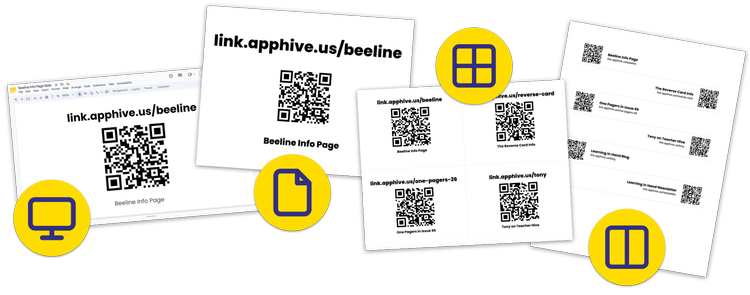
Beeline BenefitsWith Beeline, you can: Create up to 200 links per day, with no lifetime limit. Your links and QR codes continue working indefinitely, even if your Pro subscription expires. Choose custom link endings. Since Teacher Hive is relatively new, many short and memorable slugs are still available. Download a QR code for every link and customize its color. Redirect links whenever you need to change where they point. You can update the destination without changing the link or QR code you've already shared or printed. Tag links so you can find and organize them later. See visit statistics, including clicks versus scans, and 7-day, 30-day, and 48-hour activity. Get daily, weekly, or monthly email summaries so you can see which links are getting the most use. Download slides, posters, cards, or handouts featuring your links.
|
The Killer Bee FeatureI often create workshop and classroom slides that include web links, QR codes, timers, and music. Beeline saves me time because any Beeline link can be displayed full screen. The full-screen display gives you: And here's my favorite part: a hexagon displays the number of times the link has been opened since you started full-screen mode. The number updates in real time. In a classroom, you can immediately see how many students have successfully scanned the QR code or entered the link.
|
|
I spent a lot of time getting the little details right. For example, the music fades out just as the timer reaches zero. Even if link.apphive.us/your-slug isn't dramatically shorter than your original URL, it's more than a short link. You get a QR code, analytics, redirection, and a full-screen display designed for teaching and presenting. And there's one more perk: you know the developer. I'm happy to listen to your feedback and make Beeline better. Play with the Beeline's preview on Teacher Hive and see what you think. If it looks useful, I hope you'll consider getting Teacher Hive Pro and making Beeline your own.
|
|
You can download QR codes as SVGs from Beeline, and most QR code generators provide SVG downloads, too. SVG is a vector graphic, which means it can be resized without getting blurry and easily recolored. QR codes don't have to be black and white. Black on white is the safest choice, but colorful QR codes might fit your design better. The key is contrast. The QR code needs strong contrast with its background so cameras can distinguish the pattern. When displaying a QR code on a screen, I've found that a bright background with a dark QR code scans best. Dark backgrounds with light QR codes can be especially troublesome with Chromebook cameras, which may adjust their exposure to the dark background and make the QR code harder to recognize. Recoloring QR Codes in CanvaUpload or drag and drop an SVG file into your Canva design. When the SVG is selected, two circular color swatches appear in the top toolbar. Click a swatch to open the color picker. You can choose a color, enter a hex code, or use the eyedropper to pick a color from your design. Tips If you don't see the color swatches, refresh Canva and try again. Include a typeable link alongside your QR code whenever possible. If your design has multiple QR codes, give them plenty of space. Don't place them right next to each other. Instead of downloading an SVG, you can use Canva's Static QR Code app to generate a QR code directly in Canva. Test your QR codes before sharing or printing them. Signs aren't your only option. Consider a table tent that can be viewed from multiple sides. You can use one of my printable templates and put the same content on both sides or different content on each side.
|
|
QR code in Lego? Yup. You could build it with real plastic bricks or create an image using Brick QR Code.
|
|
QR codes can be created in different mediums. For a really creative QR code, check out ICQR Tree. Enter a URL and choose the season. Click the animated tree and it rotates to become a scannable QR code. Hat tip to Tricia for sharing! QR codes and short links may seem pretty ordinary, but they can be surprisingly useful, creative, and even fun. Smiles from Iowa,
|
|
Subscribe at learninginhand.com AI gave me a hand with brainstorming, drafting, and polishing this issue. Of course, I reviewed and adjusted everything before sharing it with you. Let's learn together! Bring me to your school, district, or conference. Reply to this email and let’s talk.
|
|
|
|